
The template list and its actions
What "Manage templates" shows and which actions are available for your own templates and shared templates.
3 min readUpdated
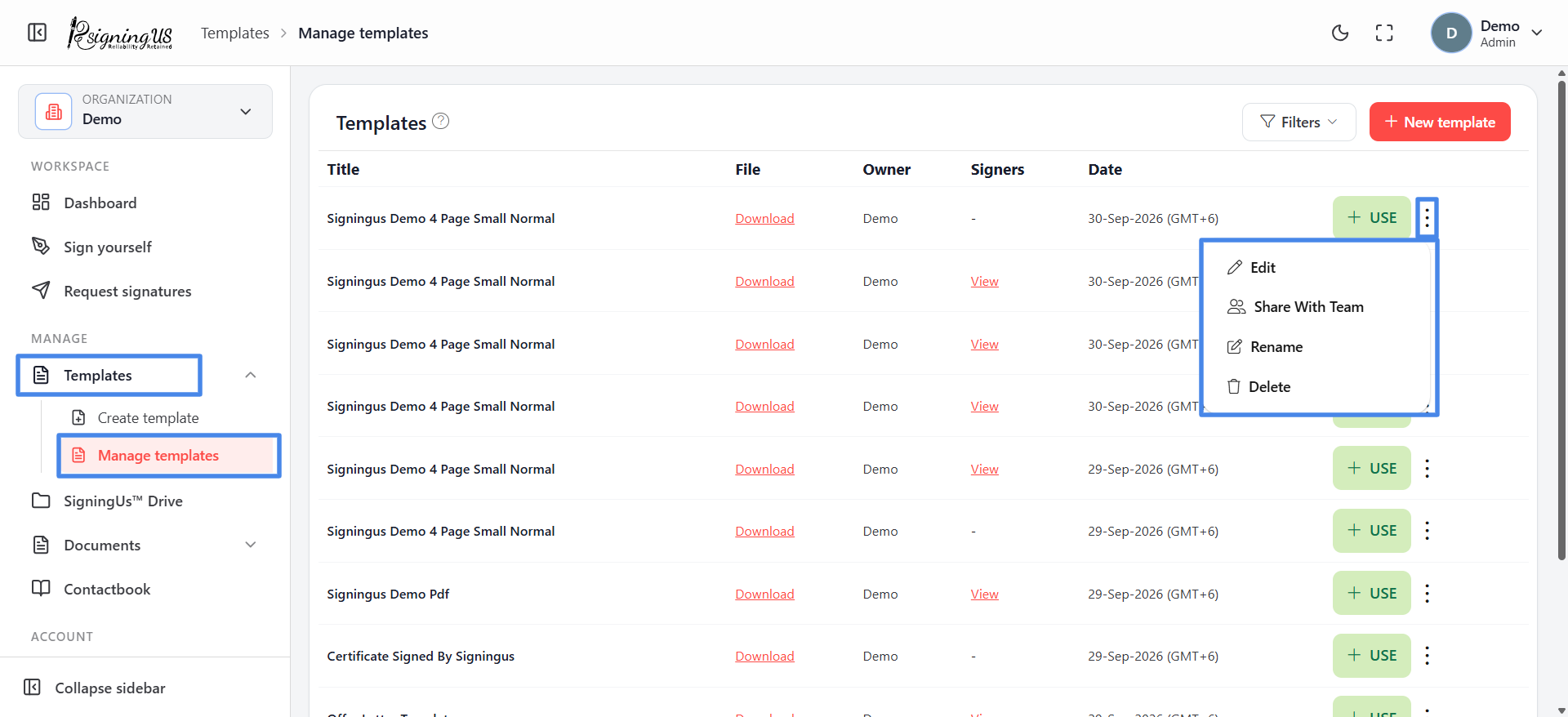
"Manage templates" lists the templates available to you for creating documents, including your own templates and any templates shared with your team. Each row shows the template title, a download link for the file, the owner, the signers or roles, and the date.
Actions#
| Action | Where | What it does |
|---|---|---|
| Use | Button on the row | Creates a new document from the template. |
| Edit | ⋮ menu | Opens the template editor to change roles, fields, and settings. |
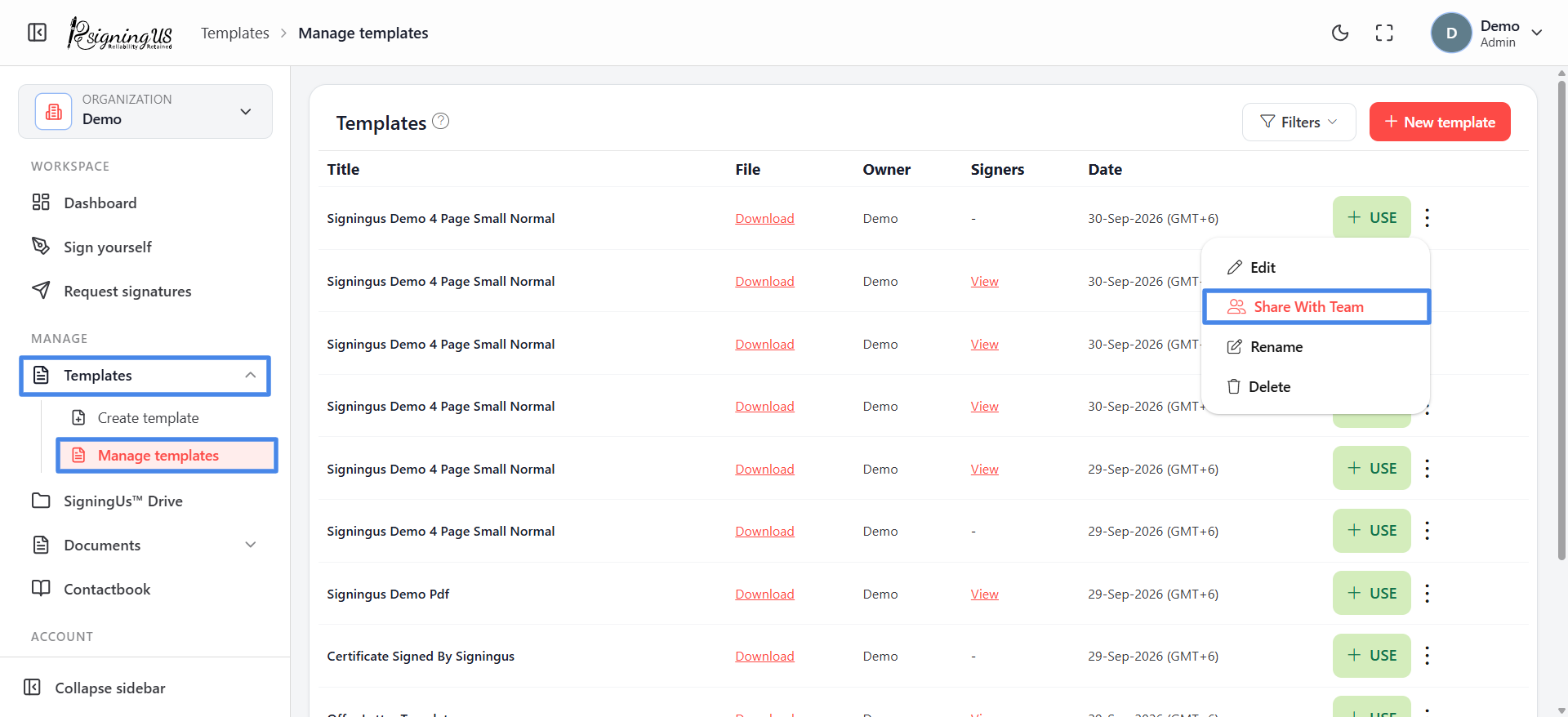
| Share with team | ⋮ menu | Makes the template available to everyone in your organization. |
| Rename | ⋮ menu | Changes the template's title. |
| Delete | ⋮ menu | Removes the template. Documents already created from it are not affected. |
Share a Template with Your Team#
- Open the ⋮ menu on a template you own and select "Share with team".
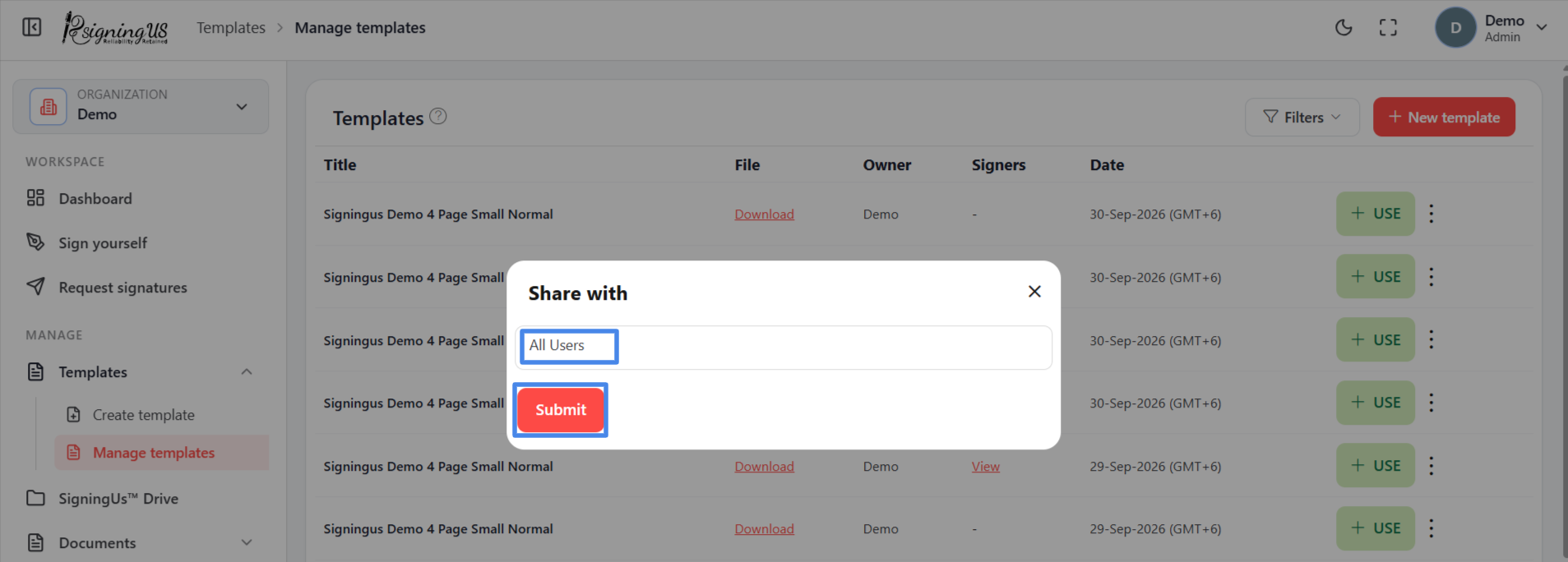
- The "Share with" dialog shows "All Users", which represents your entire organization.
- Select "Submit". You will see "Template Shared successfully."
- "Share with team" is not available to members with the User role.
- You cannot select individual people or smaller teams. A shared template is available to everyone in the organization.
- A template cannot be shared while any of its roles has a contact attached. Remove those attachments first, then share the template.
Still stuck? Email support@signingus.com and tell us which page you were on and what you expected to happen.