
General preferences
Allowed signature types, signature notifications, signing order, time zone, date format, theme, and guided tours.
4 min readUpdated
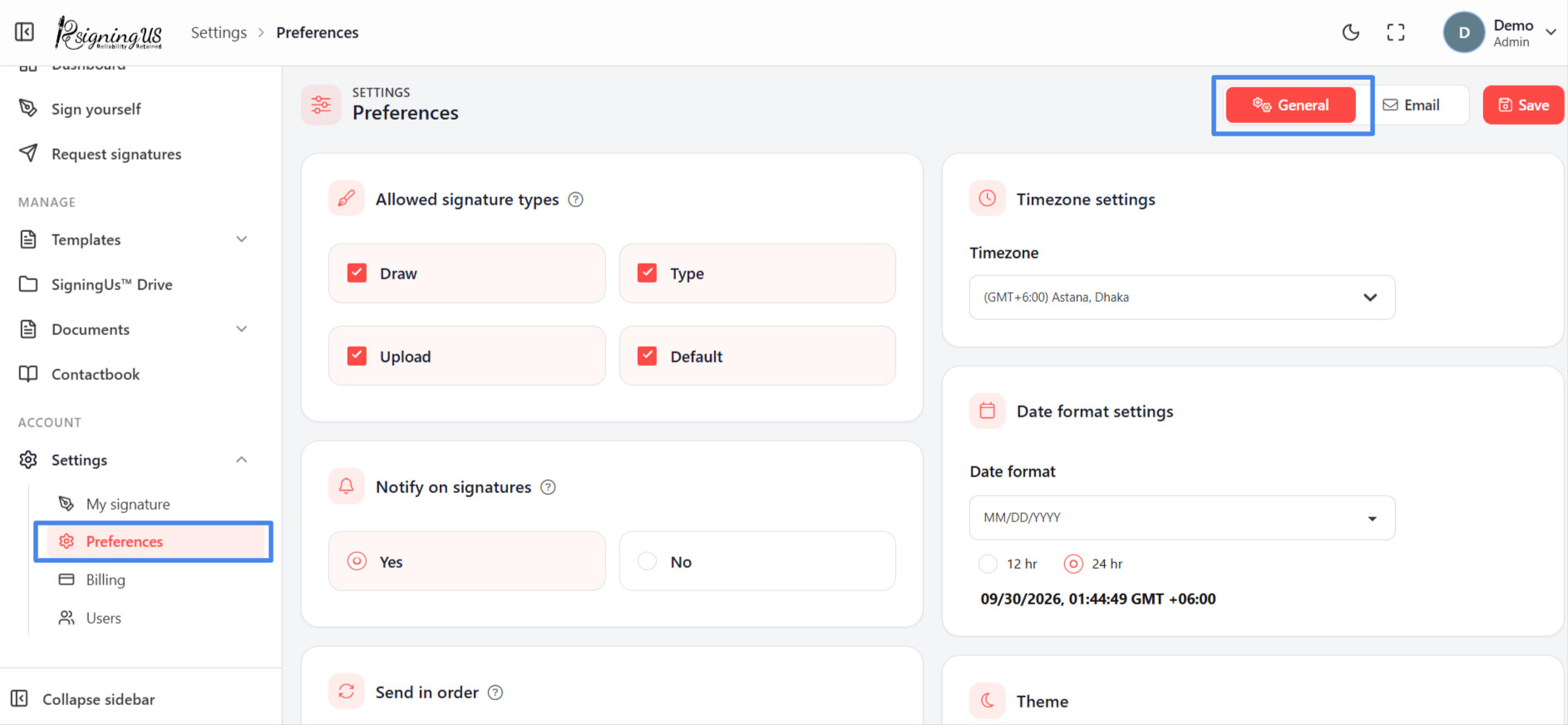
Admins and OrgAdmins open Settings → "Preferences". The "General" tab sets the default options used when documents are prepared and signed. Change the settings you need, then select "Save" at the bottom. You will see "Saved successfully."
Allowed Signature Types#
Choose which signing options are available to signers. Only the types you enable appear when someone signs a document.
| Type | What the signer does |
|---|---|
| Draw | Draws a handwritten signature on screen using a finger, stylus, or mouse. |
| Type | Types their name and selects a font style. |
| Upload | Uploads an image of their signature. |
| Default | Uses the signature saved under "My signature". |
Notify on Signatures#
Yes sends an email to the document creator each time a signer signs. Regardless of this setting, a completion email with the signed document and completion certificate attached is always sent to all signers and the owner.
Send in Order#
- Yes: The first signer is asked to sign first. Each subsequent signer receives the request only after the previous signer has signed.
- No: Every signer receives their signing link at the same time and can sign whenever they like.
This is the default setting for new documents. It can still be changed for an individual document in its advanced options.
Time Zone and Date Format#
"Timezone settings" determines the time zone used for dates.
"Date format settings" offers MM/DD/YYYY, MMMM DD, YYYY, DD MMMM, YYYY, DD-MM-YYYY, DD MMM, YYYY, YYYY-MM-DD, MM-DD-YYYY, MM.DD.YYYY, and MMM DD, YYYY, along with a 12-hour or 24-hour clock.
Theme and Enable Tour#
- Theme: Choose light, dark, or follow your system.
- Enable tour: Yes shows signers a guided tour with instructions while they sign. No skips the tour for a faster, uninterrupted signing experience, which is useful for signers who are already familiar with SigningUS.
Still stuck? Email support@signingus.com and tell us which page you were on and what you expected to happen.