
See who has viewed and signed
Read the "SENT", "VIEWED", "SIGNED", and "DECLINED" status chips and open each signer's document log.
2 min readUpdated
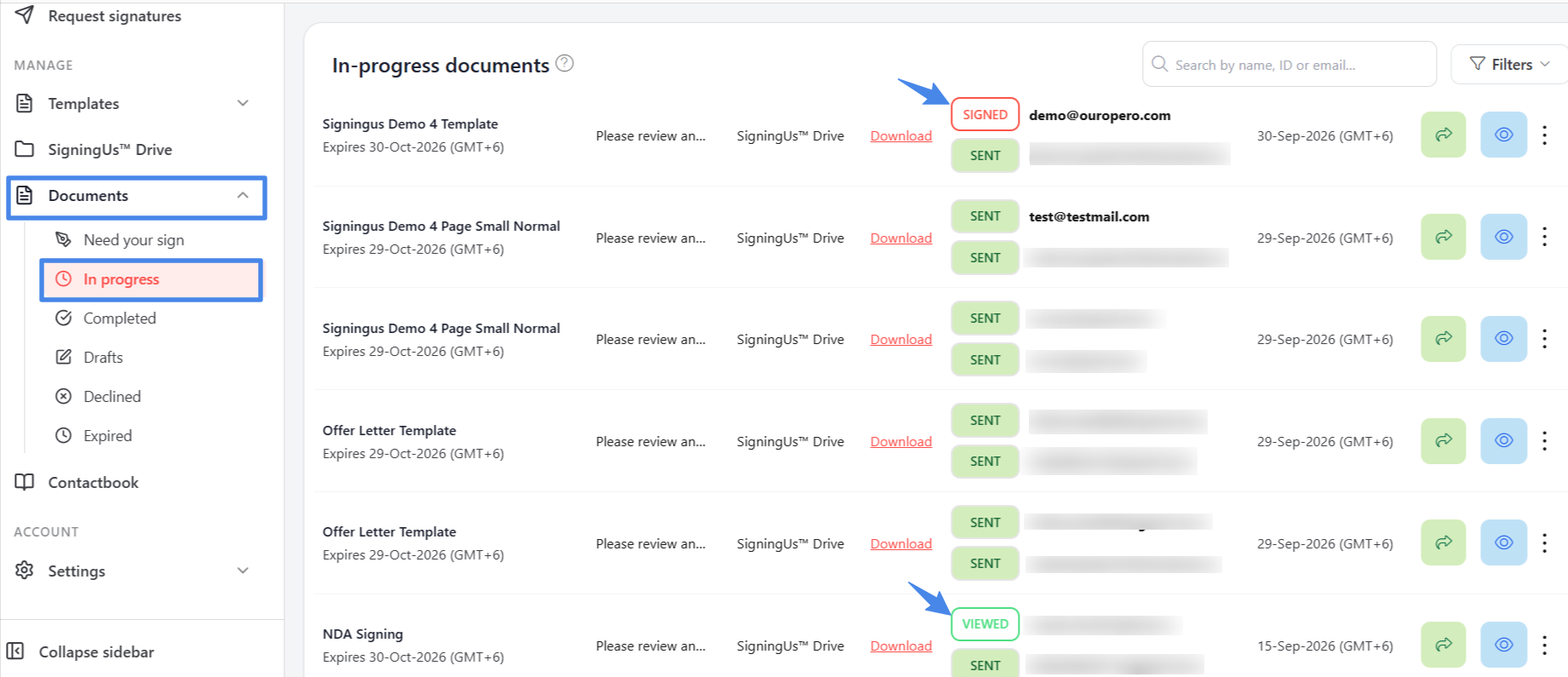
On the "In progress" and "Need your sign" lists, the Signers column shows each signer's email address with a coloured chip indicating their current status.
| Chip | Meaning |
|---|---|
| SENT | The signing request has been sent, but the signer has not opened it yet. |
| VIEWED | The signer has opened the document but has not signed it. |
| SIGNED | The signer has finished signing. |
| DECLINED | The signer has declined to sign. |
Open the Document Log#
Select a signer's status chip to open "Document logs" for that person. It shows their current status, "Viewed on" and "Signed on" dates, and, for a declined document, when they declined it and the reason they provided.
When a document has more than three signers, only the first three are displayed until you select "Show More". In the other document lists, select "View" in the Signers column to see everyone the document was sent to.
Still stuck? Email support@signingus.com and tell us which page you were on and what you expected to happen.