
Copy a field to other pages
Repeat a field, such as initials, on every page without placing it manually.
2 min readUpdated
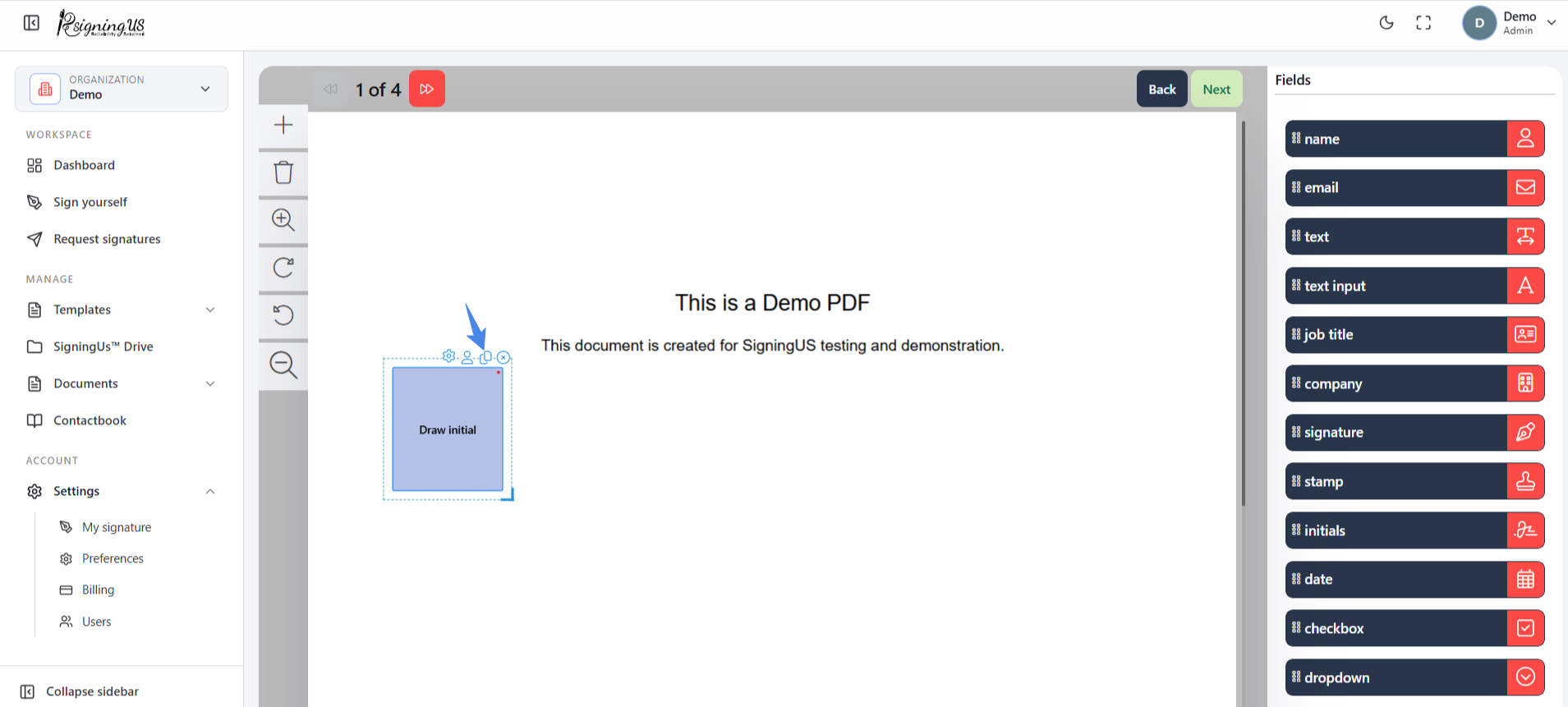
- Place the field once and configure it.
- Select the copy icon on the field.
- In "Copy widget to", choose where you want the copies to appear.
- Confirm. The copies will belong to the same recipient and keep the same settings.
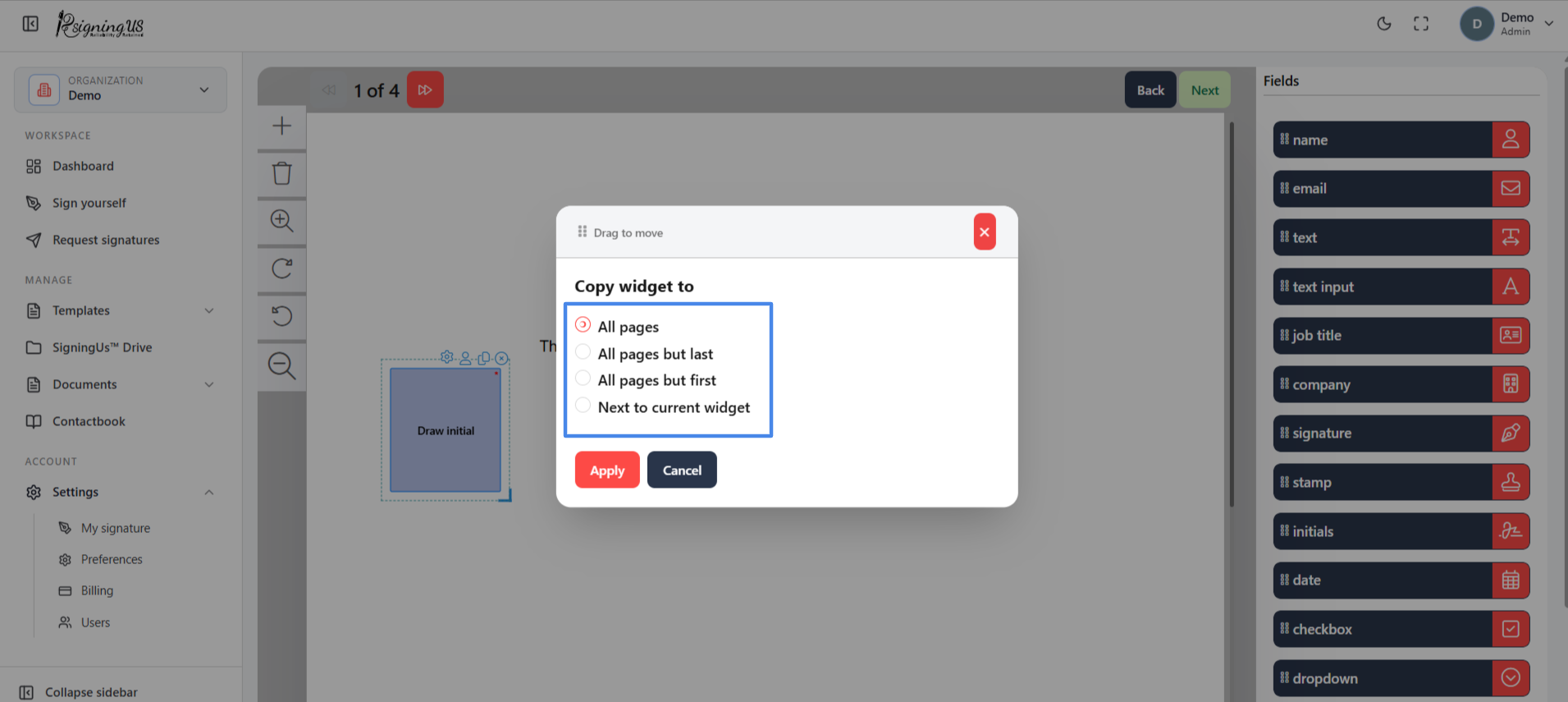
| Option | Result |
|---|---|
| All pages | Places a copy in the same position on every page. |
| All pages but last | Places a copy on every page except the last one. |
| All pages but first | Places a copy on every page except the first one. |
| Next to current widget | Places one copy beside the original on the same page. |
To remove a field, select the ✕ on the field.
Still stuck? Email support@signingus.com and tell us which page you were on and what you expected to happen.