
Field settings
Name a field, make it required or optional, add a hint, and set fonts, colors, date formats, and options.
4 min readUpdated
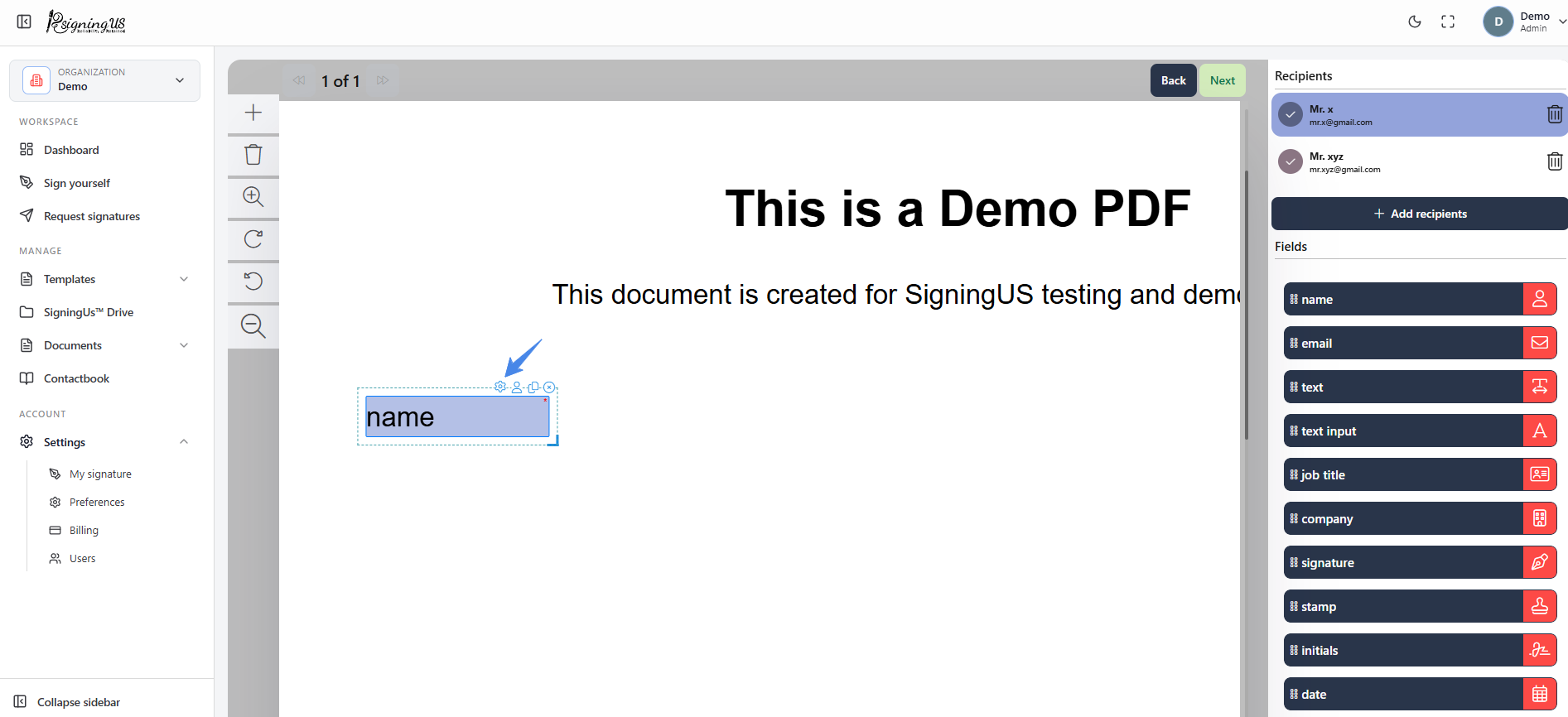
Select the gear icon on a placed field to open its settings. The dialog is called "Widget info", or "Signature settings" for Signature and Initials fields.
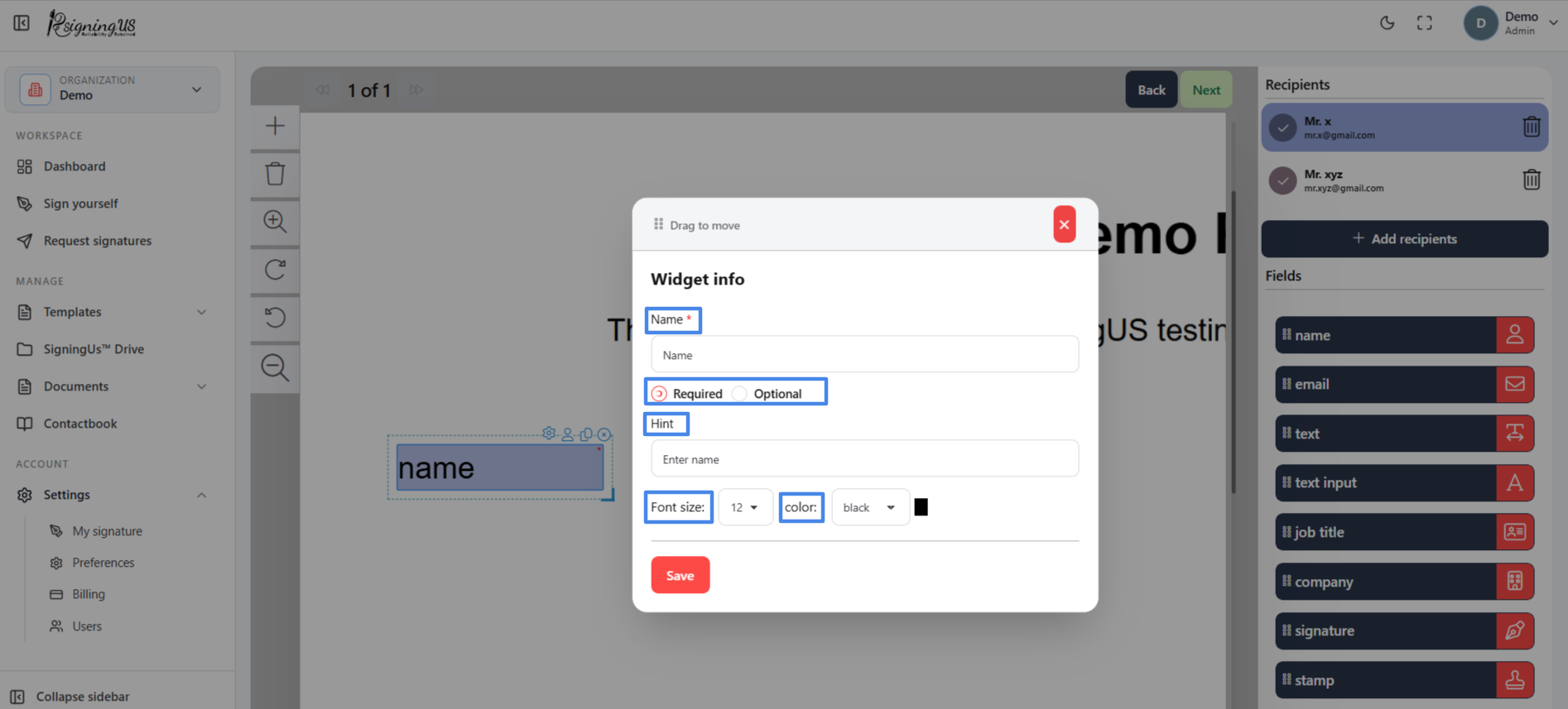
Settings Most Fields Have#
- Name: A label for the field, which is useful when a document contains many fields.
- Required or Optional: Signers cannot complete the document until all required fields are filled in.
- Hint: A short tip displayed to the signer, up to 40 characters.
- Font size: Choose a size from 2 to 28 for fields that display text.
- Color: Choose red, black, blue, or yellow for fields that display text.
Settings for Specific Fields#
| Field | Extra settings |
|---|---|
| Signature, Initials | "Allowed signature types": Choose how the signer can sign: draw, type, upload, or use their saved signature. |
| Text input | "Default value" to pre fill the field, and "Is read only" to prevent the signer from editing it. |
| Date | "Select a date format", along with font size and color. |
| Dropdown | "Dropdown options": Set the list of choices, a default value, and whether the field is required. |
| Radio button | "Radio group": Set the options and a default value, choose "Is read only", and choose whether to hide the labels. |
| Checkbox | Set the options and defaults, choose "Is read only", hide labels, and set the minimum and maximum number of boxes the signer must select. |
Date Formats#
- MM/DD/YYYY
- DD-MM-YYYY
- YYYY-MM-DD
- MM-DD-YYYY
- MM-DD-YYYY
- MMM DD, YYYY (Sep 16, 2026)
- MMMM DD, YYYY (September 16, 2026)
- DD MMM, YYYY (16 Sep, 2026)
- DD MMMM, YYYY (16 September, 2026)
Still stuck? Email support@signingus.com and tell us which page you were on and what you expected to happen.