
Download & Certificate
Download the signed PDF and attachments, print the document, get the completion certificate, and understand what the completion email contains.
3 min readUpdated
- Download from a list
- Download the completion certificate
- The completion email
Download from a List#
Select "Download" in the File column of any document list. For a document that is not yet complete, this downloads the PDF in its current state.
For a completed document, the "Download files" dialog opens so you can choose what to include:
| Option | What you get |
|---|---|
| Download pdf | The signed PDF. Selected by default. |
| File Attachments | Files uploaded by signers through file fields, such as an ID or passport. This option appears only when attachments are available and downloads them together with the PDF as a ZIP file. |
Download the Completion Certificate#
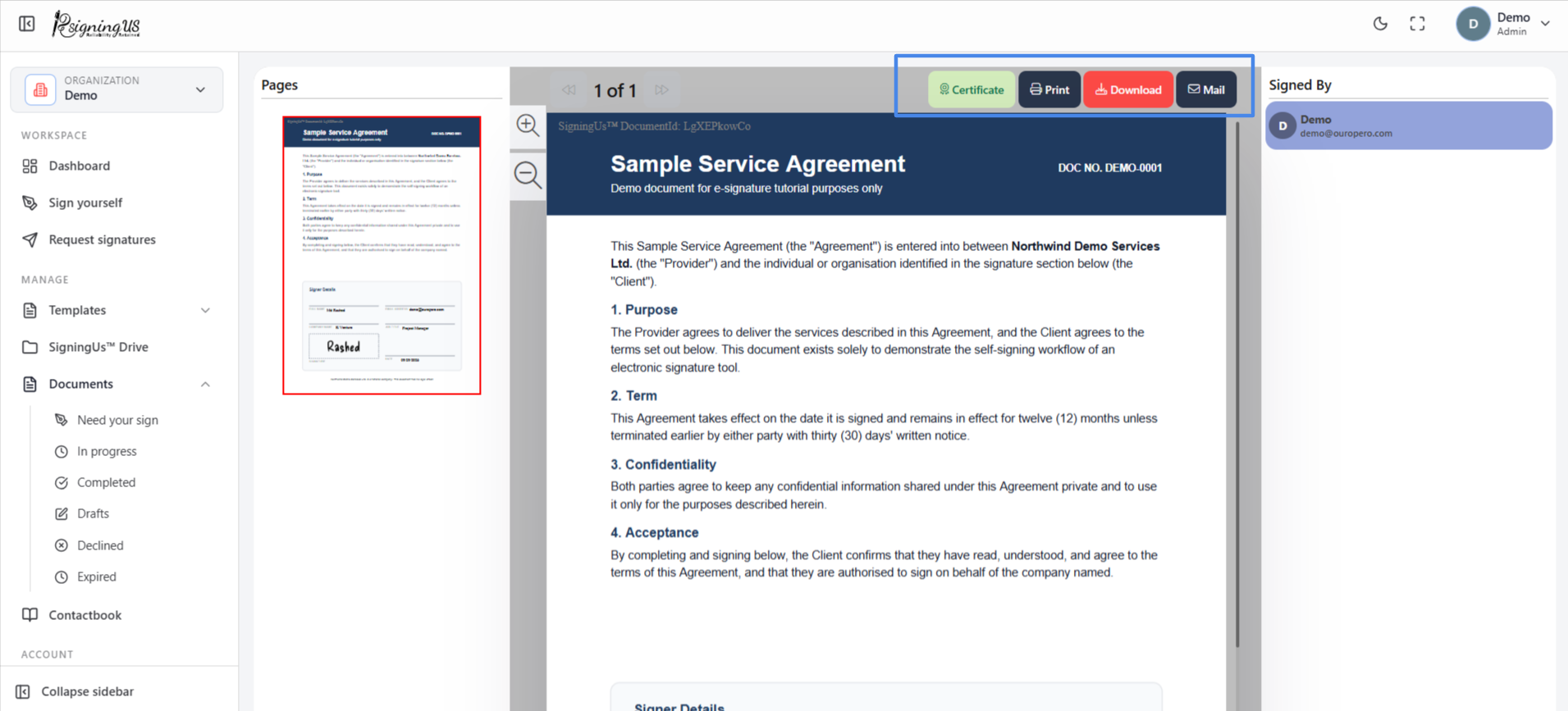
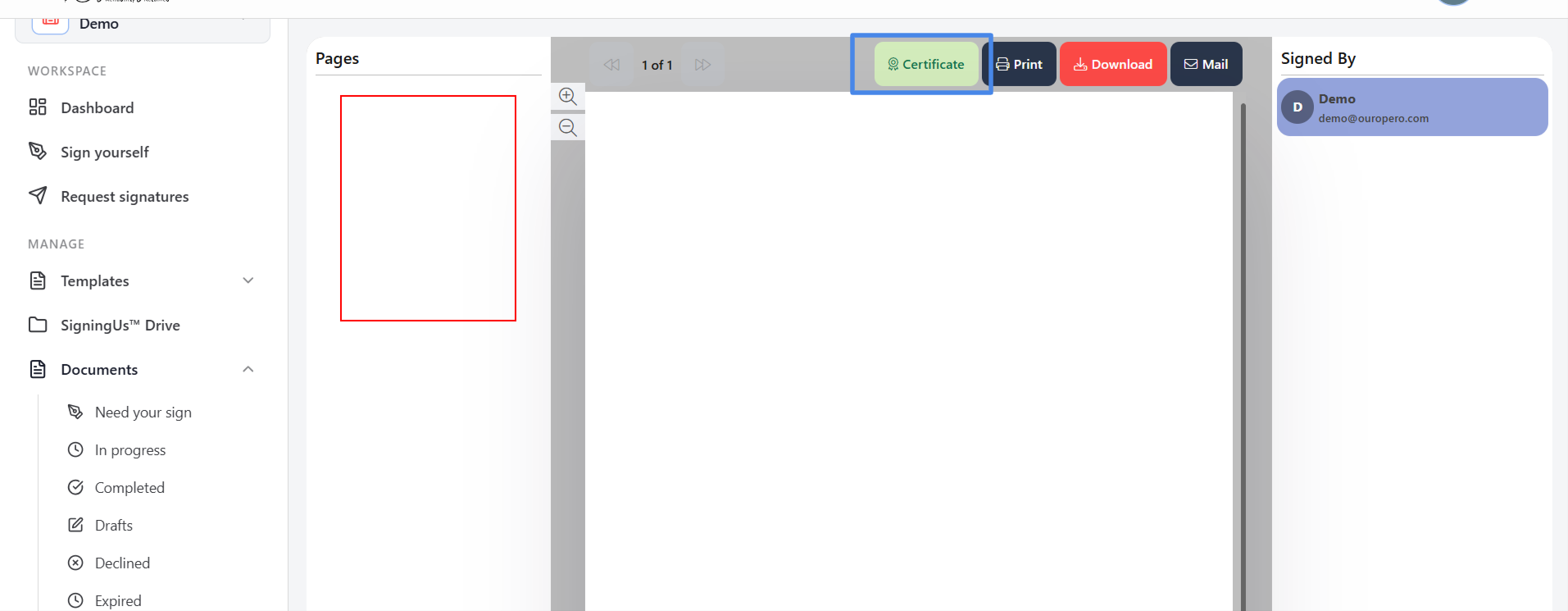
Open the completed document with "View". In the toolbar above the document, select "Certificate". While the certificate is being prepared, you will see "Generating certificate". The download starts when it is ready. If it does not start, select the button again.
Print#
In the same toolbar, select "Print" to open your browser's print dialog for the document. Select "Download" to save the signed PDF.
The Completion Email#
When the last signer finishes, SigningUS sends every signer and the document owner a completion email with the signed document and completion certificate attached. This happens regardless of the "Notify on signatures" setting. Anyone added as Cc or Bcc on the document also receives the email.
Still stuck? Email support@signingus.com and tell us which page you were on and what you expected to happen.