
Deactivate or remove a member
Pause someone's access with the Active switch, or remove them and take ownership of their documents.
2 min readUpdated
Deactivate (and Reactivate)#
Deactivating prevents a member from signing in but keeps their account in the member list, so you can restore their access later.
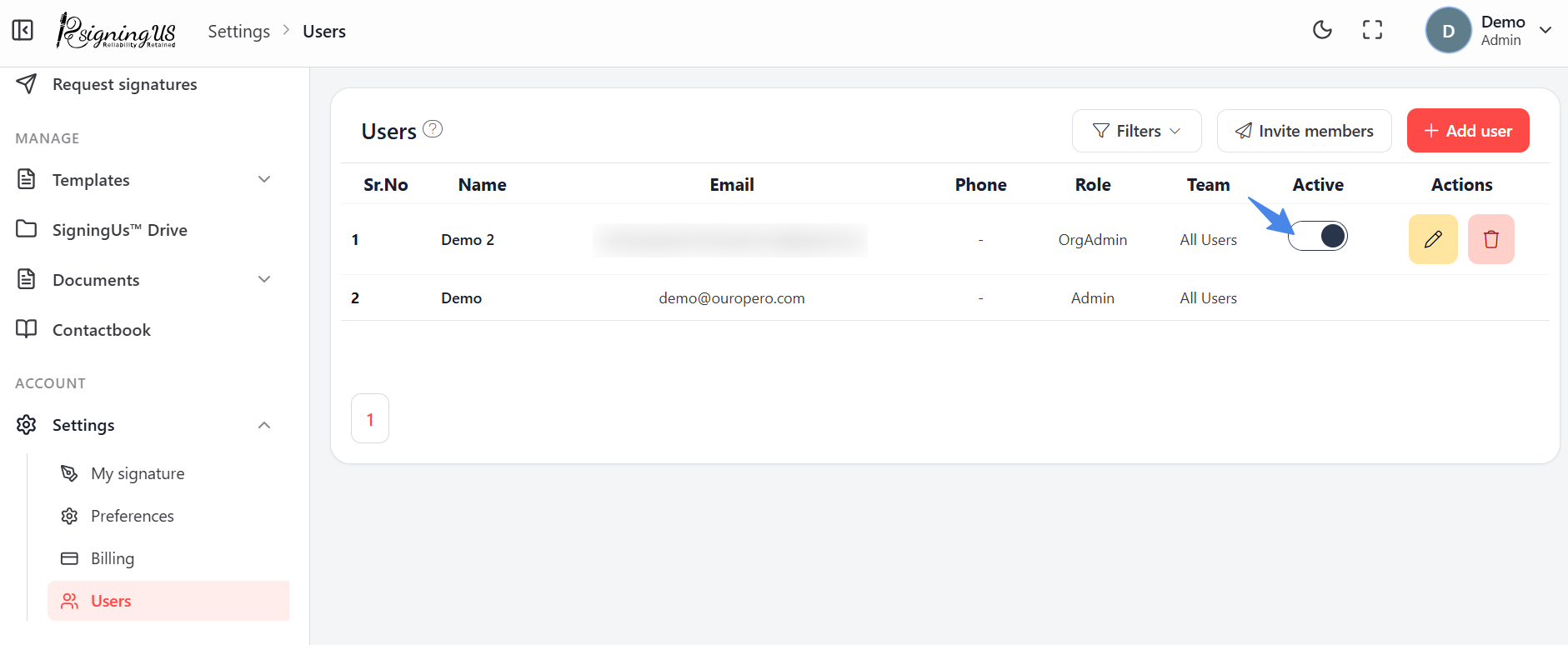
- On Settings → "Users", switch off the toggle in the Active column.
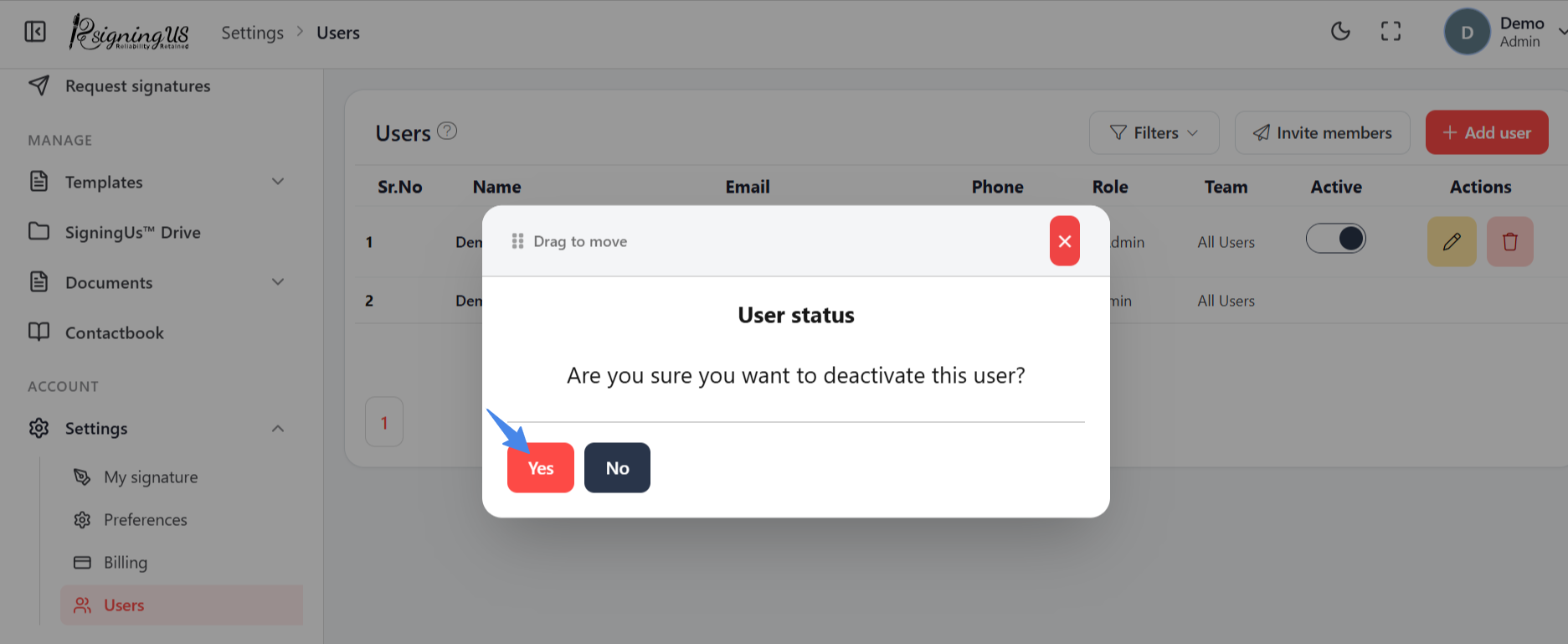
- In "User status", confirm by selecting "Yes". You will see "User deactivated." (or "User activated.").
A deactivated member who tries to sign in sees "You don't have access, please contact the admin."
Remove#
- Select the bin icon on the member's row.
- Read the confirmation: "Their documents and templates will be reassigned to you, and their account will be deactivated."
- Select "Remove". You will see "Member removed. Their documents were reassigned to you."
Still stuck? Email support@signingus.com and tell us which page you were on and what you expected to happen.