
Add a user directly
Create a member's account yourself with a generated password instead of sending an email invitation.
2 min readUpdated
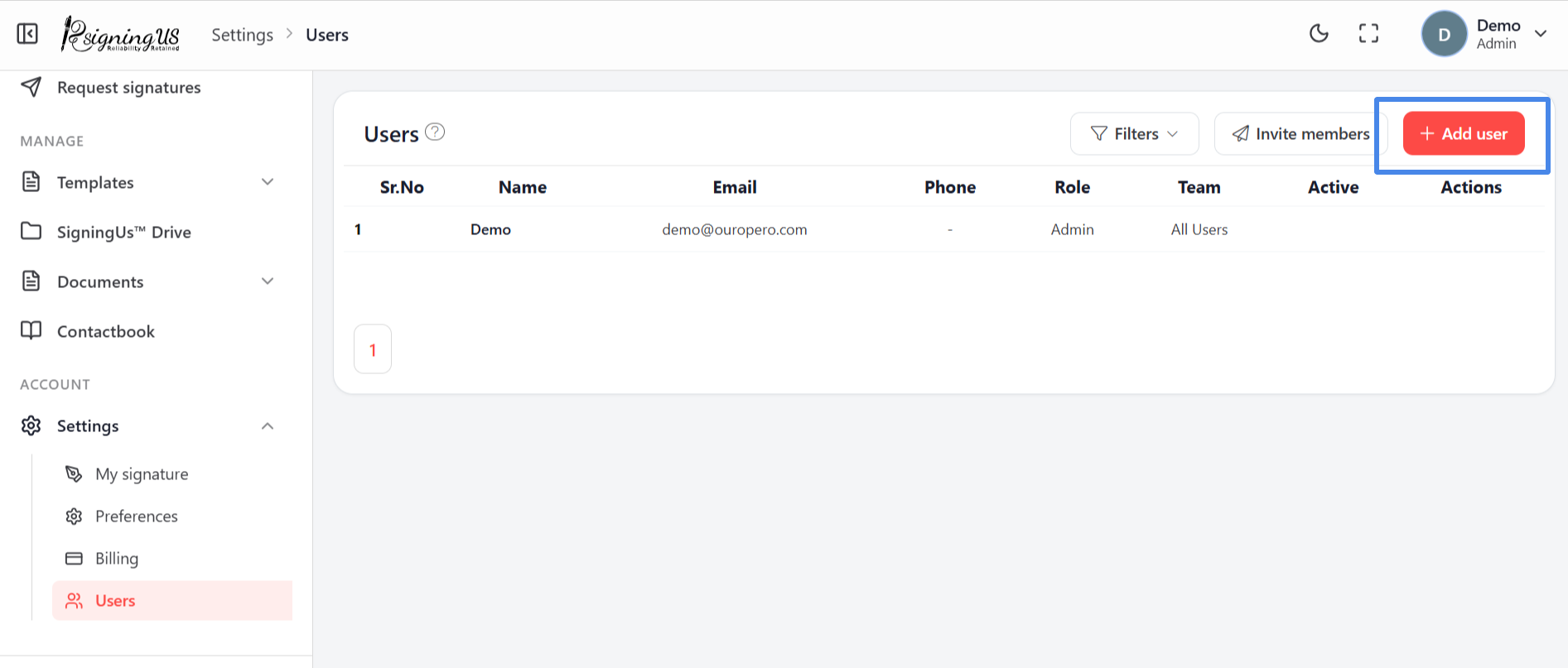
"Add user" creates the account immediately. Use it when you want to provide someone with their sign-in details yourself. If you would rather let the person choose their own password, send an invitation instead.
- Go to Settings → "Users" and select "Add user".
- Enter the person's name and email address.
- Copy the generated password shown on the form.
- Optionally enter a phone number.
- Choose a Role: OrgAdmin, Editor, or User.
- Select "Submit". The person appears in the member list and can sign in using the email address and the password you copied.
| Message | What it means |
|---|---|
| User already exist. | Someone with that email address already has an account. Invite them instead so they can join using their existing sign-in. |
| A seat-limit message from the server | Your plan has no available seats. An Admin can free a seat or change the plan from the Billing page. |
Still stuck? Email support@signingus.com and tell us which page you were on and what you expected to happen.