
Recipients and Signing Order
Manage the people on a document while placing fields, change the order in which they sign, and understand the different recipient types.
3 min readUpdated
After the request form, SigningUS opens the document with a recipients panel beside it. Each recipient is assigned a different color, and the fields you place for them use that color.
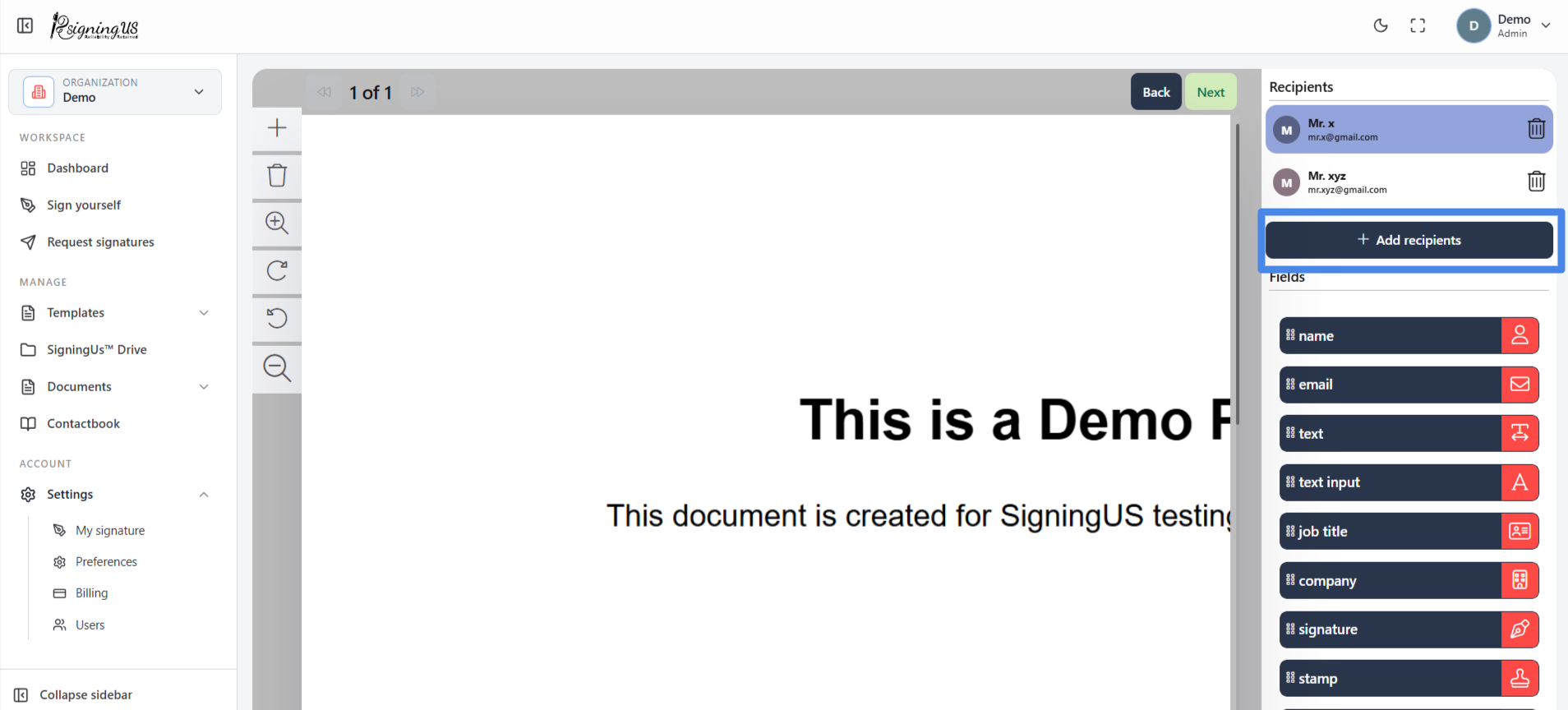
Add a Recipient#
- Select "Add recipients".
- Enter the recipient's name and email address, and optionally add a phone number. Alternatively, select "Add yourself" to fill in your own details.
- Select "Submit". The person is added to the recipient list and saved to your Contactbook.
Change the Signing Order#
On a computer, drag recipients up or down the list. On a phone, use the up and down arrows. The order matters when "Send in order" is set to Yes.
Recipient Types#
| Type | What they do |
|---|---|
| Signer | Opens the signing link and completes the fields assigned to them. Every signer must have at least one signature field. |
| Cc / Bcc | Set in Advanced options. They do not sign anything and receive the completed document by email. |
Still stuck? Email support@signingus.com and tell us which page you were on and what you expected to happen.