
The dashboard
Plan usage, work waiting for you, recent documents, and activity charts.
3 min readUpdated
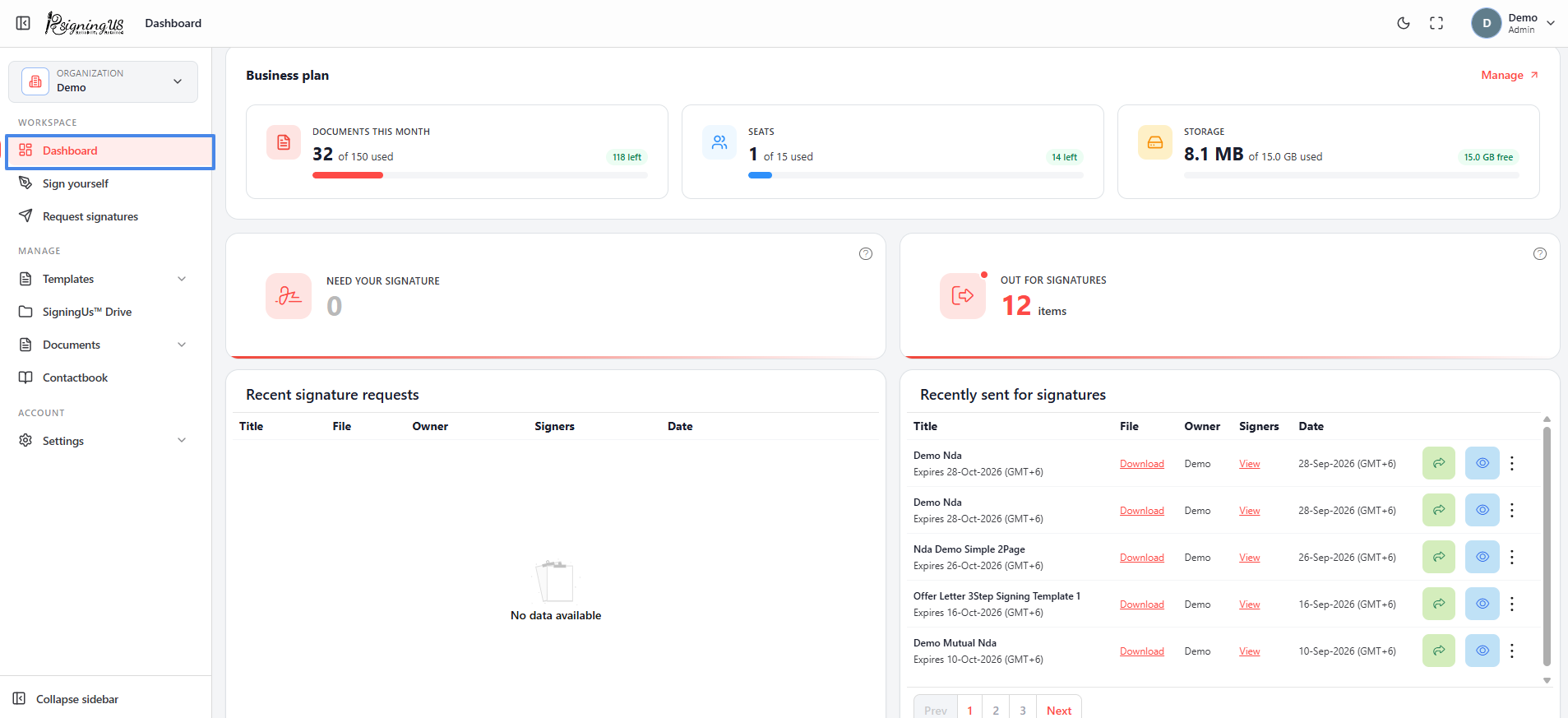
The dashboard is the first page you see after signing in. From top to bottom, it displays the following sections:
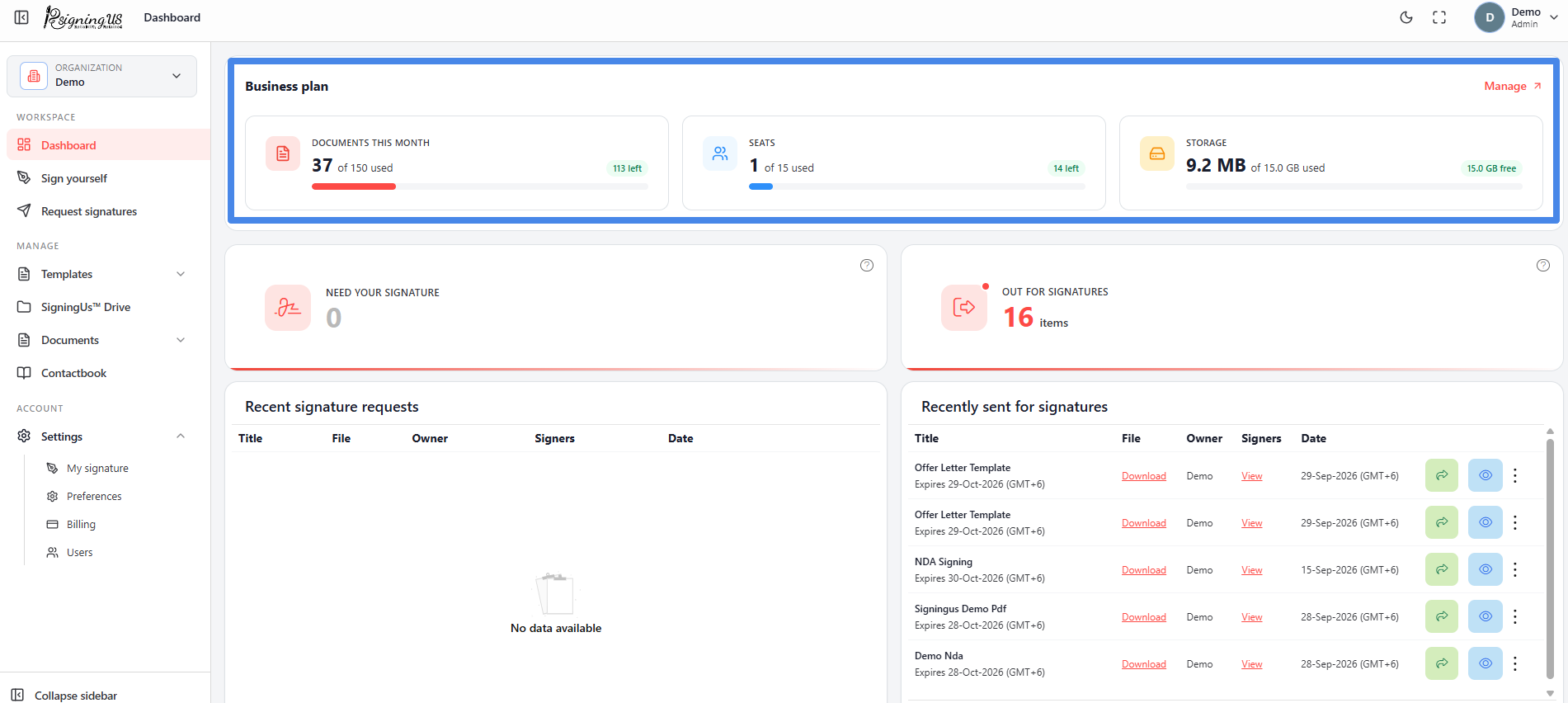
Usage#
A usage card shows your organization's plan and three tiles: "Documents this month", "Seats", and "Storage". A "Running low" or "Inactive" chip appears when you are approaching a limit or the plan has lapsed. "Manage" or "Upgrade" opens the Billing page.
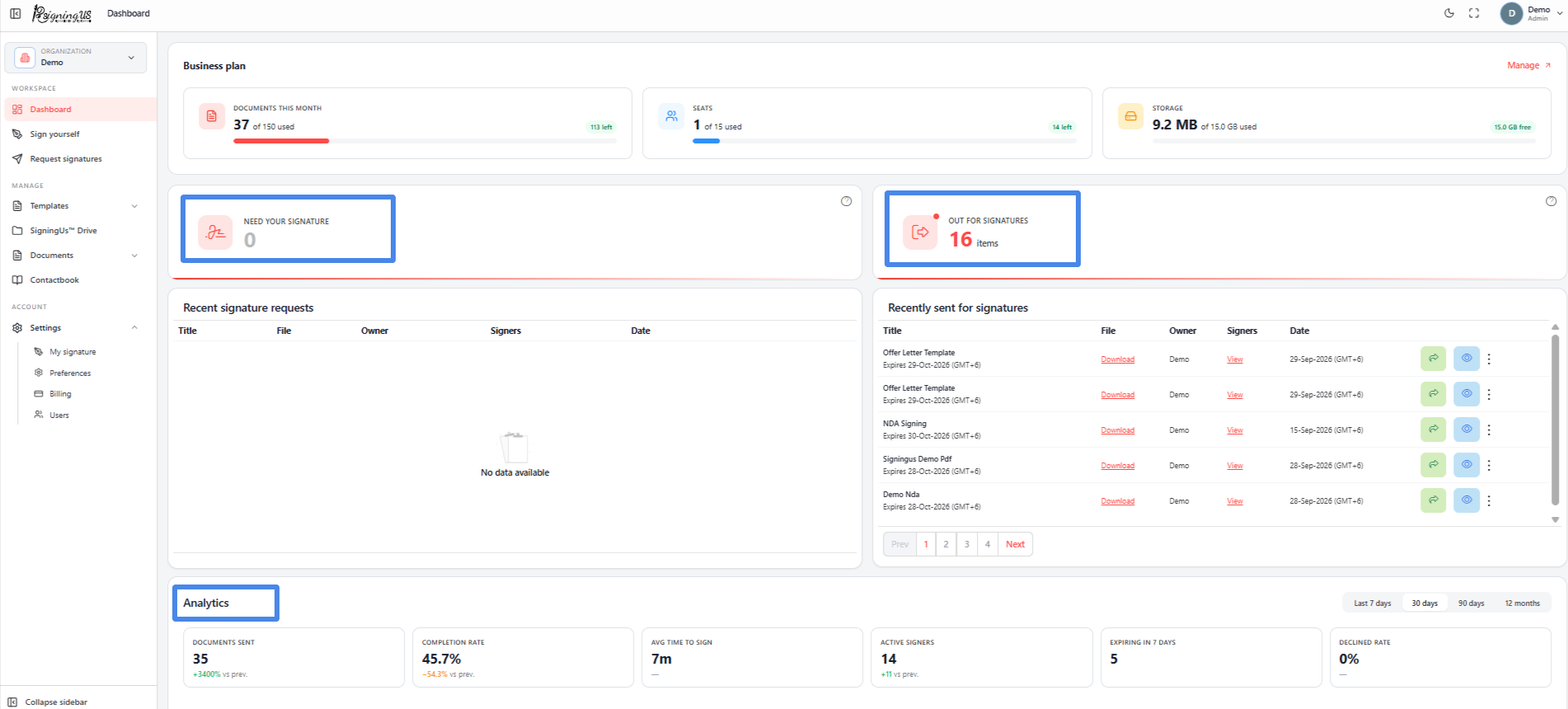
Quick Actions and Counts#
- "Sign yourself" and "Request signatures" buttons let you start a new document.
- "Need your signature": Shows the number of documents waiting for you to sign. Select it to open the list.
- "Out for signatures": Shows the number of documents you sent that are still waiting for someone to sign.
Recent Documents#
| Table | What it lists | Actions |
|---|---|---|
| Recent signature requests | Documents other people have sent you to sign. | Sign |
| Recently sent for signatures | Documents you sent that are currently in progress. | Share, View, and a ⋮ menu with Resend, Rename, Revoke, Save as template, and Delete |
| Drafts | Documents you started but have not yet sent. | Edit, Delete, and Save as template from the ⋮ menu |
Analytics#
Two charts summarize activity over the last 7 days, 30 days, 90 days, or 12 months. "Documents activity" shows documents sent, signed, and declined, while "Signature status" shows the current status of your documents.
Still stuck? Email support@signingus.com and tell us which page you were on and what you expected to happen.