
Browse your drive
Move between folders, search, sort, switch views, and check a document's status at a glance.
3 min readUpdated
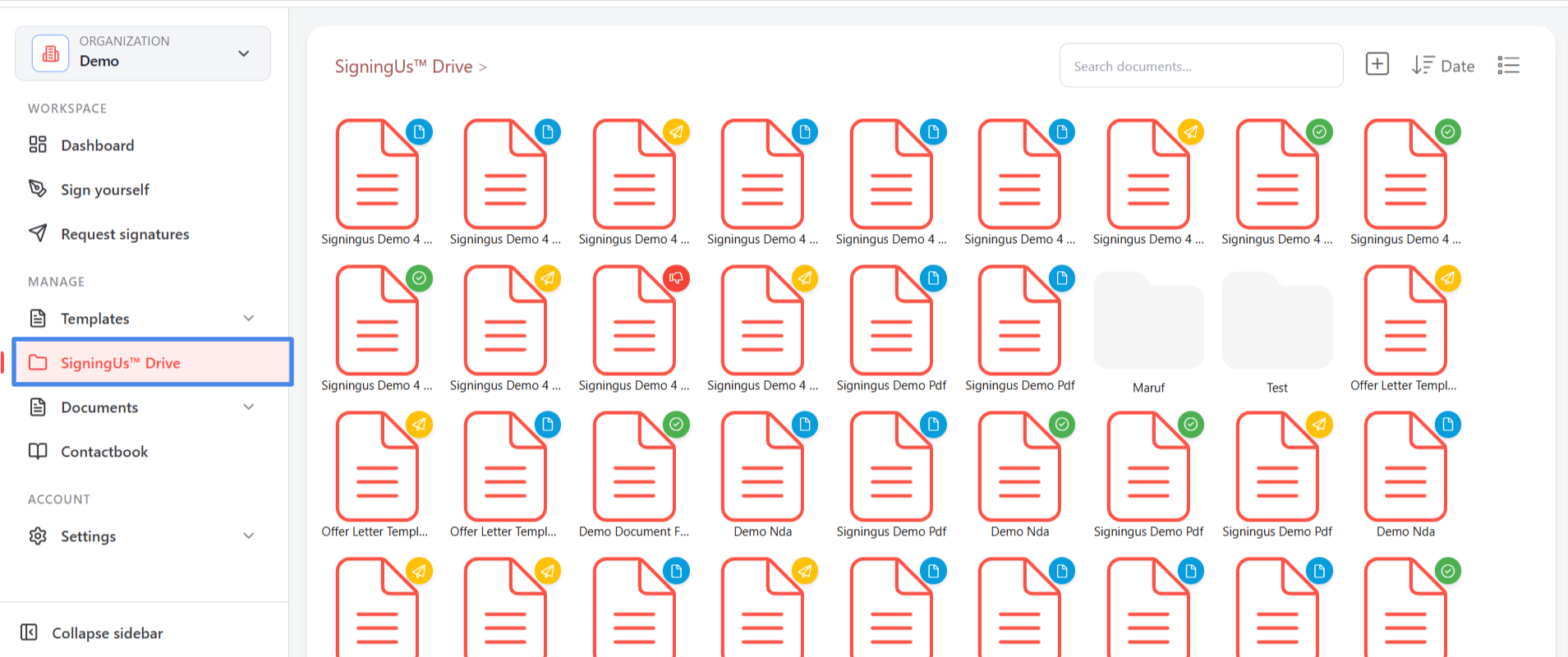
SigningUS™ Drive, available in the sidebar under Manage, stores every document you create, whether it is a draft, out for signature, or completed. Documents that are not placed in a folder remain at the top level, "SigningUS™ Drive".
Move Between Folders#
Select a folder to open it. The breadcrumb trail at the top shows your current location. Select any part of the breadcrumb trail to move back to a higher-level folder.
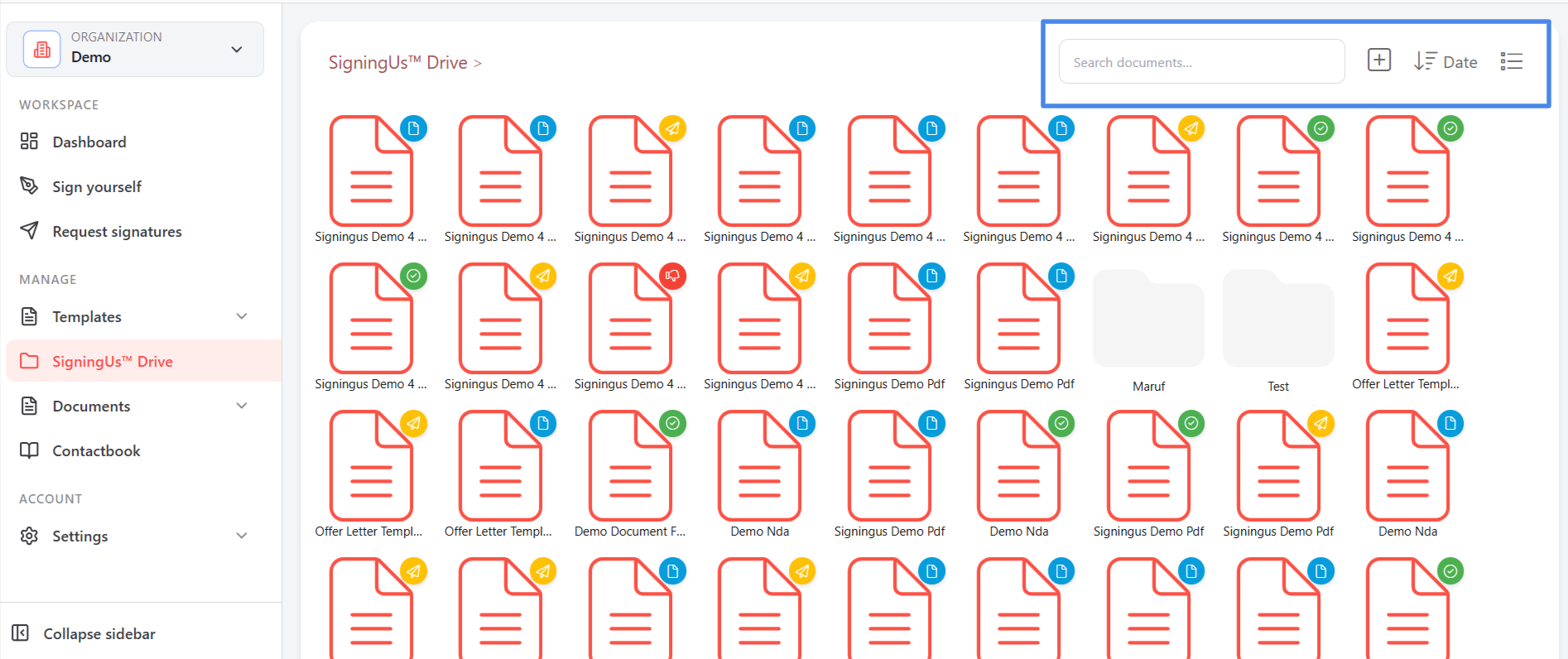
Search, Sort, and Views#
- Search: Enter a document name in "Search documents…" to find it.
- Sort: Open the sort menu and choose "Name" or "Date", then select "Ascending" or "Descending".
- Views: Use the view button to switch between a grid of icons and a table showing Name, Created date, Type, Status, and Action columns.
Document Status#
An icon on each document indicates its status: "Draft", "In progress", "Completed", "Declined", or "Expired". Hover over a document to see its title, status, created date, and signers.
Open a Document#
Select a document to open it. SigningUS takes you to the appropriate view based on its status. A draft opens in the editor so you can continue working on it, while a sent, declined, or completed document opens for viewing.
Still stuck? Email support@signingus.com and tell us which page you were on and what you expected to happen.