
Add, edit and delete contacts
Keep a list of signers that SigningUS suggests whenever you add recipients.
2 min readUpdated
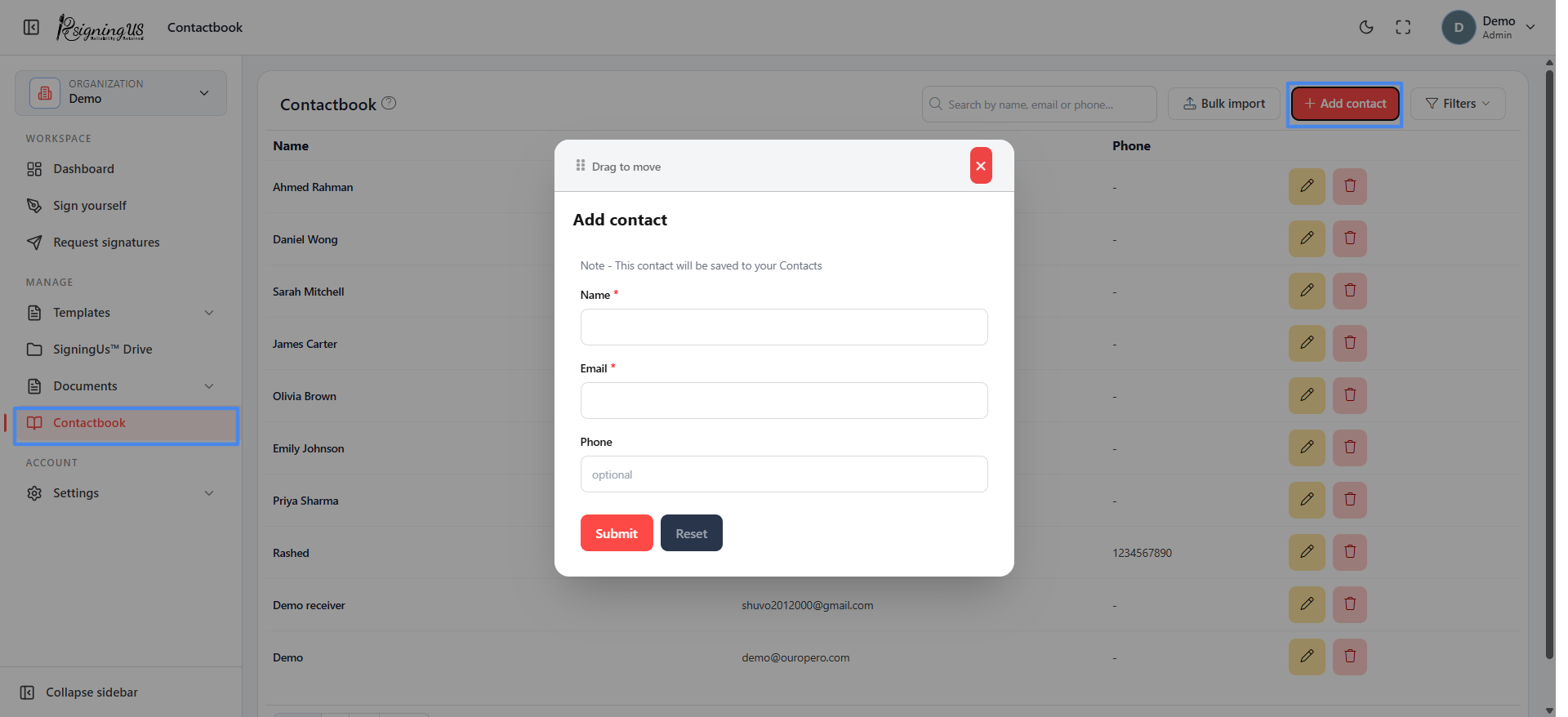
Contactbook, available in the sidebar under Manage, lists the contacts you have added, including their Name, Email, and Phone. These contacts appear as suggestions whenever you add signers, Cc, or Bcc recipients to a document or template.
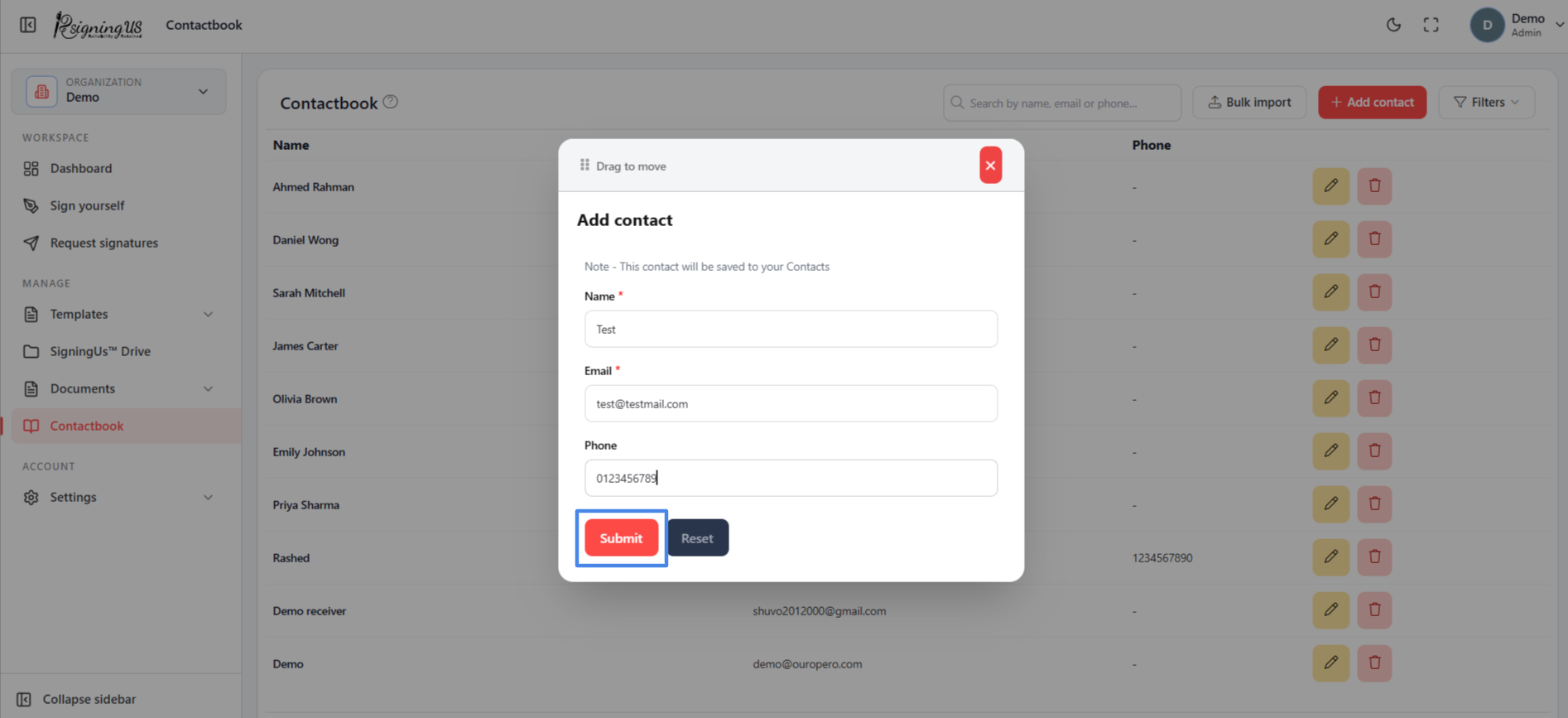
Add a Contact#
- Select "Add contact".
- Enter a name and email address. Phone is optional.
- Alternatively, select "Add yourself" to fill in your own details.
- Select "Submit".
Edit or Delete a Contact#
Select the edit button on a row to open "Edit contact" and change the contact details. Select the delete button, then confirm "Are you sure you want to delete this contact?" to remove the contact.
Find a Contact#
Enter a name, email, or phone number in "Search by name, email or phone…". You can also open "Filters" to filter contacts separately by name, email, or phone.
Still stuck? Email support@signingus.com and tell us which page you were on and what you expected to happen.