
Import contacts from a spreadsheet
Bring up to 100 contacts into Contactbook at once from a CSV or Excel file.
2 min readUpdated
- Use a .csv, .xlsx, or .xls file.
- The first row must contain column headers, including "Name" and "Email". A "Phone" column is optional.
- Include no more than 100 contacts per file.
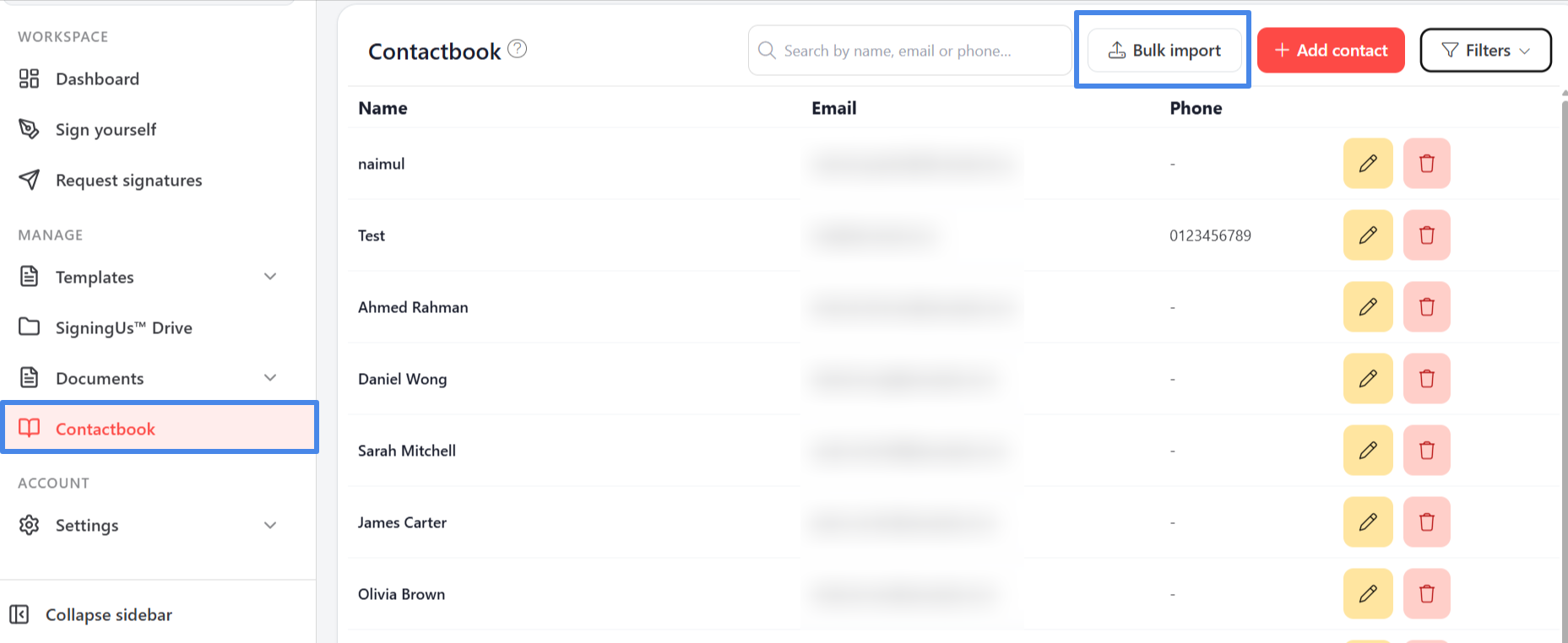
Import It#
- In Contactbook, select "Bulk import".
- Select your file under "Contacts file (xlsx, csv)".
- Review the preview table. Use "Previous" and "Next" to move between pages.
- Select "Import".
SigningUS then reports how many contacts were imported and how many failed.
| Message | What to fix |
|---|---|
| Currently you can only import up to 100 records. | Split the file into files containing 100 rows or fewer. |
| Invalid data | The file is missing the Name or Email header, or the file is empty. |
| Upload a file in one of the following formats: CSV, XLSX or XLS. | Save the spreadsheet in one of the supported formats. |
| Invalid records found | Rows with a missing or invalid email address are skipped. The preview shows how many invalid records were found. |
Still stuck? Email support@signingus.com and tell us which page you were on and what you expected to happen.