
The document lists
What appears in "Need your sign", "In progress", "Completed", "Drafts", "Declined", and "Expired".
3 min readUpdated
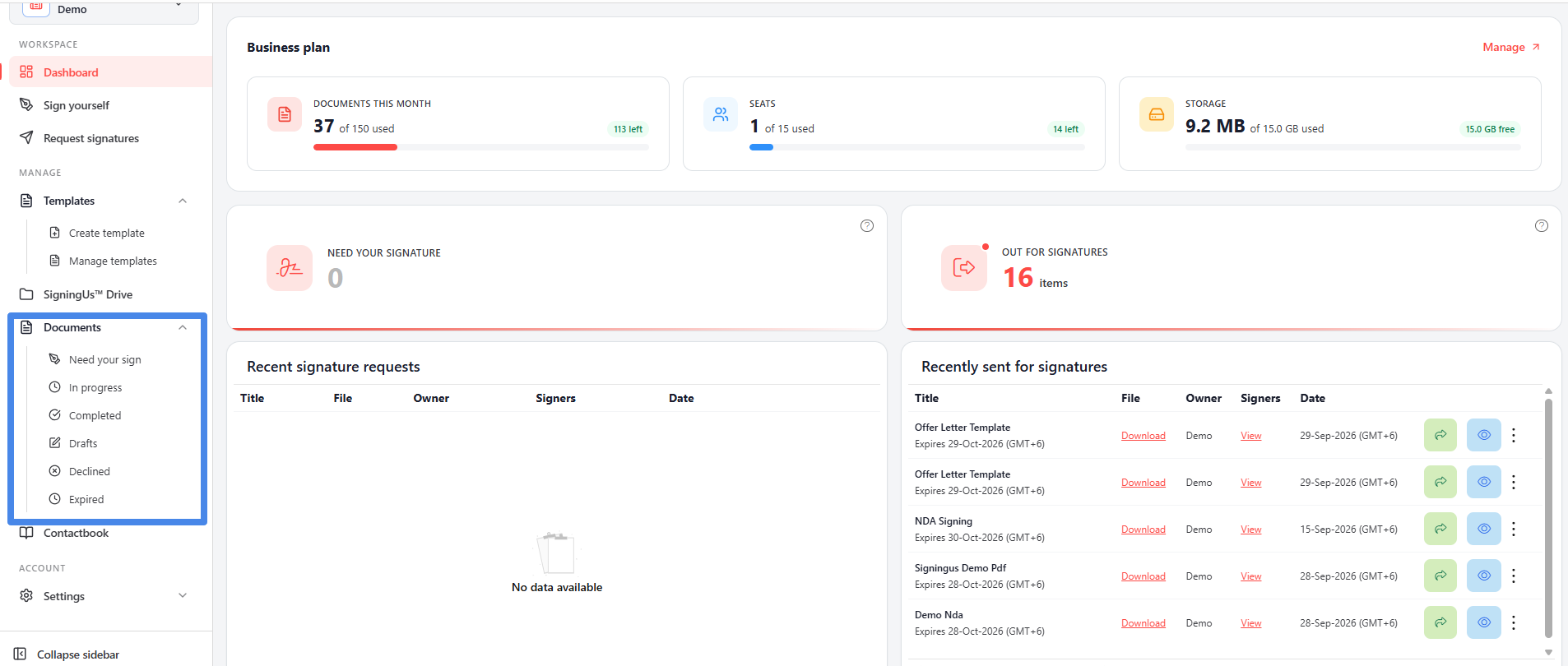
Open Documents in the sidebar to see six lists. A document moves between these lists automatically as people take action on it, so you do not need to file it manually.
| List | What is in it |
|---|---|
| Need your sign | Documents that are waiting for your signature. |
| In progress | Documents you have sent to other people that are not yet fully signed and have not expired. |
| Completed | Documents that have been signed by all parties. |
| Drafts | Documents you have started but have not sent yet. |
| Declined | Documents that one of the signers has declined. Shows the "Reason", "Declined By", and "Declined On". |
| Expired | Documents that reached their expiry date before everyone signed. |
Most lists show the title, note, folder, a link to download the file, the owner, the signers, and the date. The "Folder" column shows the folder where the document is saved, or "SigningUS™ Drive" if it is stored in the main drive.
Still stuck? Email support@signingus.com and tell us which page you were on and what you expected to happen.