
Send the document by email
Send the request, customize the email, and understand what the result messages mean.
3 min readUpdated
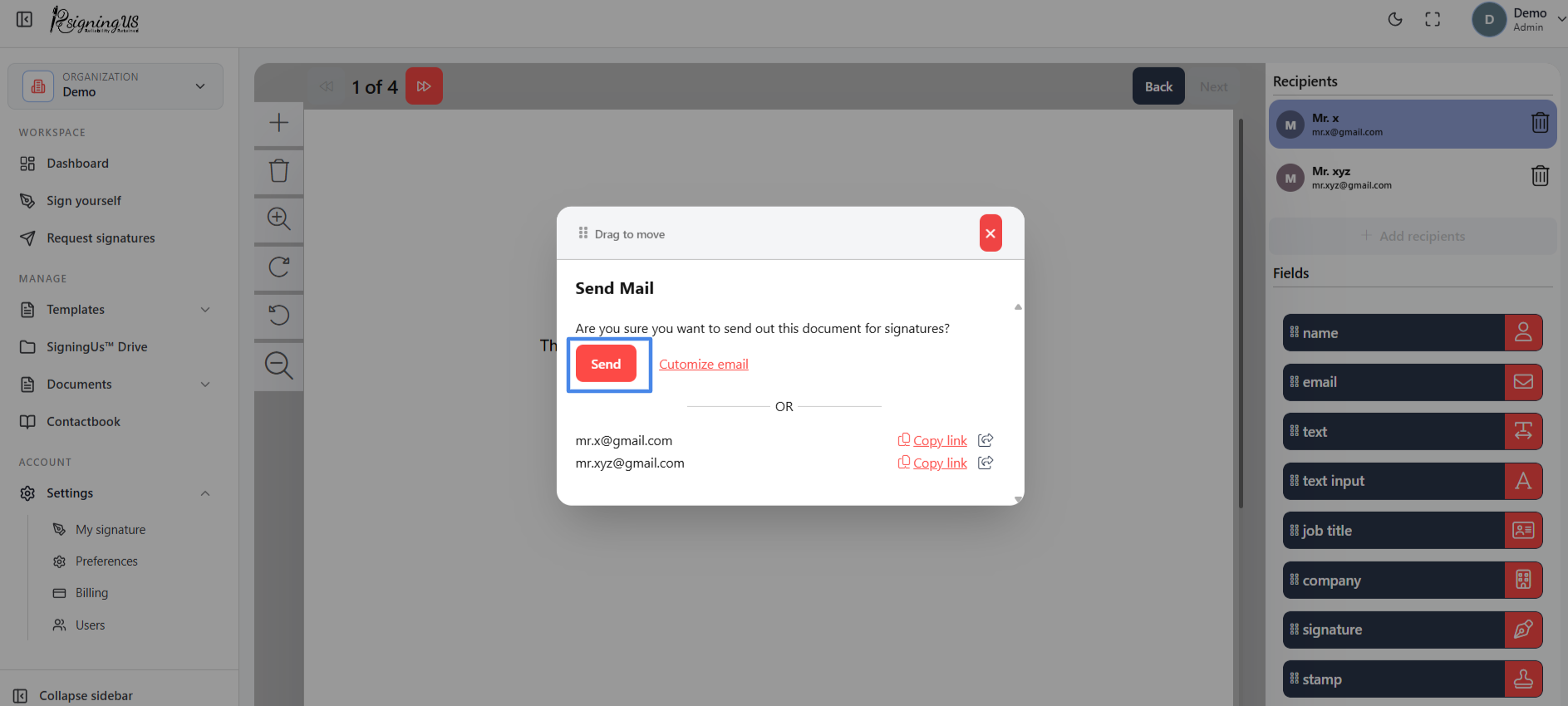
Send#
- When every signer has their required fields, select "Next".
- The "Send Mail" dialog asks, "Are you sure you want to send out this document for signatures?"
- Optionally select the customize email button to change the subject and message. Select "Reset to default" to restore the original wording.
- Select "Send".
When "Send in order" is enabled, only the first signer receives an email initially. The next signers receive their emails as each previous signer completes their part. If you are one of the signers, SigningUs asks, "Do you want to sign the document right now?"
Result Messages#
| Message | What it means |
|---|---|
| Mails Sent | The signing emails were sent successfully. |
| Quota reached | Your organization has used its available signature request emails. The document is still created. You can copy the signing links and share them manually. |
| You've reached your daily quota | Too many emails have been sent today. Try again later or contact support. |
| Mail not delivered | The email could not be sent. Copy the signing links and share them manually, or try again later. |
Still stuck? Email support@signingus.com and tell us which page you were on and what you expected to happen.