
The Users page
Where to find your member list, what each column means, and how to filter it.
2 min readUpdated
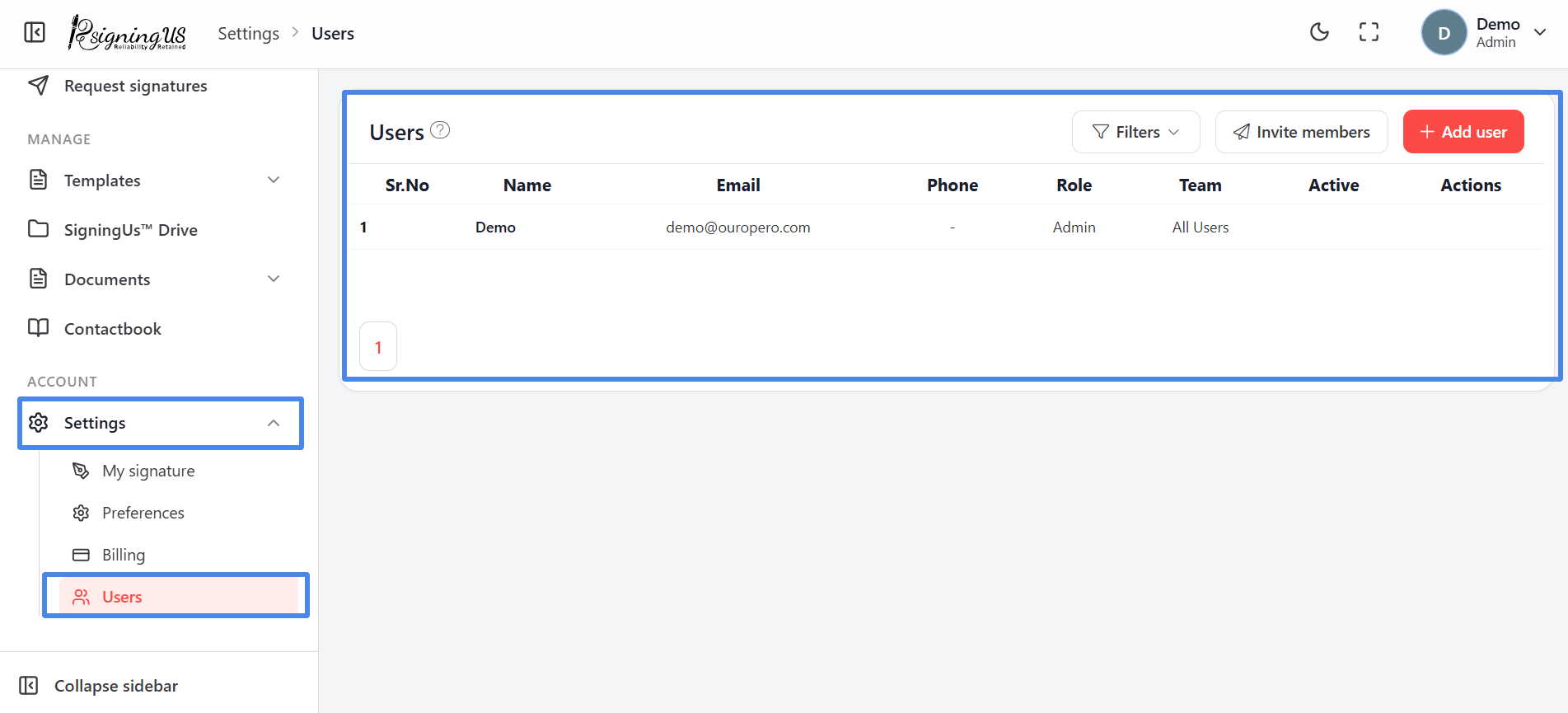
Admins and OrgAdmins can open the member list from Settings → "Users" in the sidebar. The list displays ten people per page, with "Prev" and "Next" buttons for navigating between pages.
Columns#
| Column | What it shows |
|---|---|
| Name,Email, Phone | The member's details. A dash indicates that the field is empty. |
| Role | Admin, OrgAdmin, Editor, or User. |
| Team | The team the member belongs to. |
| Active | A switch showing whether the member can currently sign in. See "Deactivate or Remove a Member". |
| Actions | "Edit" (pencil) and "Remove member" (bin). These actions are not shown on the Admin's row. |
Filter the List#
- Select "Filters" above the table.
- Enter a Name, Email, or Phone number to search, or select a Role, Team, or Active status. Each dropdown starts at "Any".
- The "Showing X of Y" count updates as you apply filters. Select "Clear all" to reset them.
The two buttons beside "Filters" are "Invite members", which opens the invitations page, and "Add user", which creates an account immediately.
Still stuck? Email support@signingus.com and tell us which page you were on and what you expected to happen.