
Customize request and completion emails
Change the subject and body of the emails SigningUS sends for your organization's documents.
3 min readUpdated
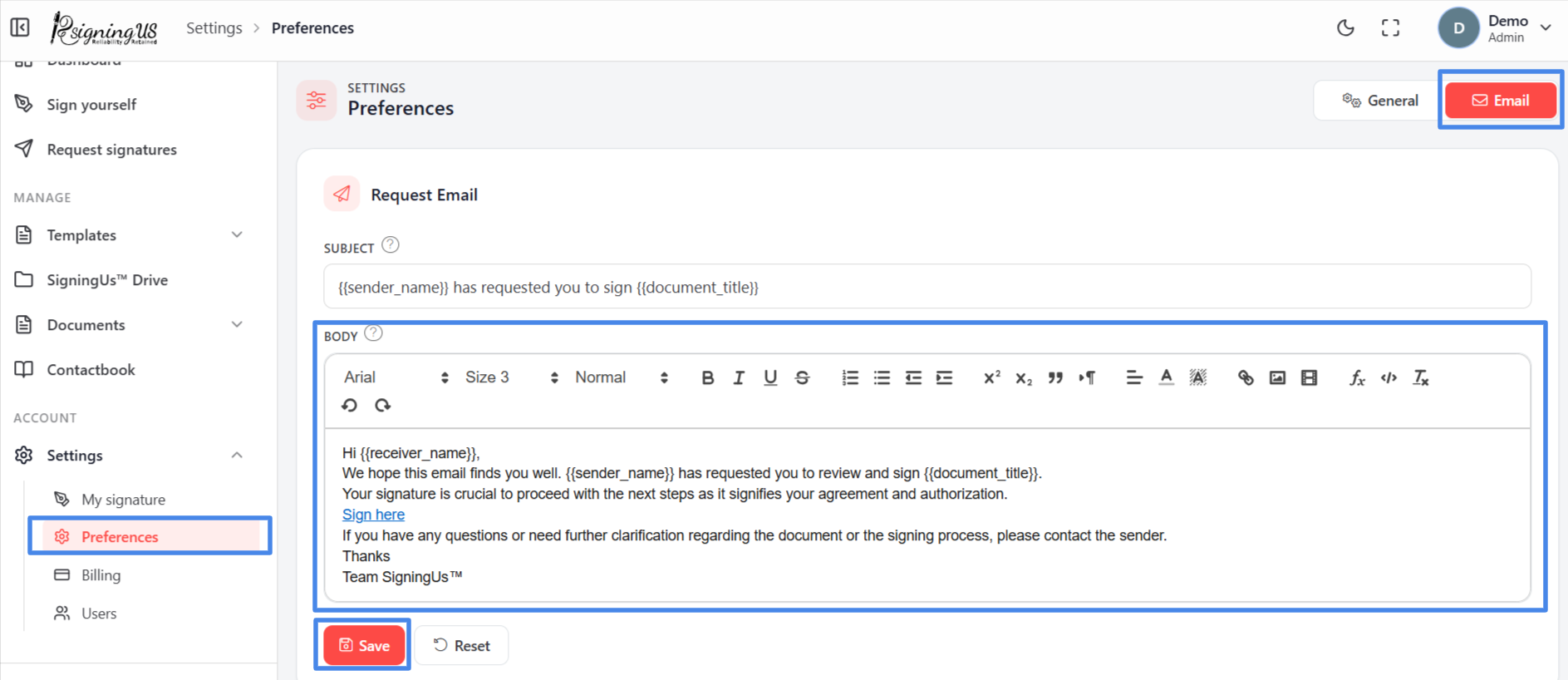
The "Email" tab in Settings → "Preferences" lets you customize the two emails sent for your organization's documents. It is available only to the organization's Admin, the person who created it. OrgAdmins do not see this tab.
| Template | Sent when | Default subject |
|---|---|---|
| Request Email | A signer is asked to sign. | {{sender_name}} has requested you to sign {{document_title}} |
| Completion Email | Everyone has signed. | Document {{document_title}} has been signed by all parties |
Edit a Template#
- Open the "Email" tab.
- Change the Subject and edit the Body in the text editor.
- Select "Save" under that template.
- To restore the original wording, select "Reset".
Variables#
Enter these placeholders exactly as shown, including the double braces. SigningUS replaces them with the corresponding value when the email is sent.
| Variable | Replaced with |
|---|---|
| {{sender_name}} | The name of the person who sent the document. |
| {{document_title}} | The document's title. |
| {{receiver_name}} | The name of the person receiving the email. |
| {{signing_url}} | The signer's personal signing link. |
Still stuck? Email support@signingus.com and tell us which page you were on and what you expected to happen.