
The header, banners and guided tours
The avatar menu, theme and full screen controls, and the messages that can appear above your work.
3 min readUpdated
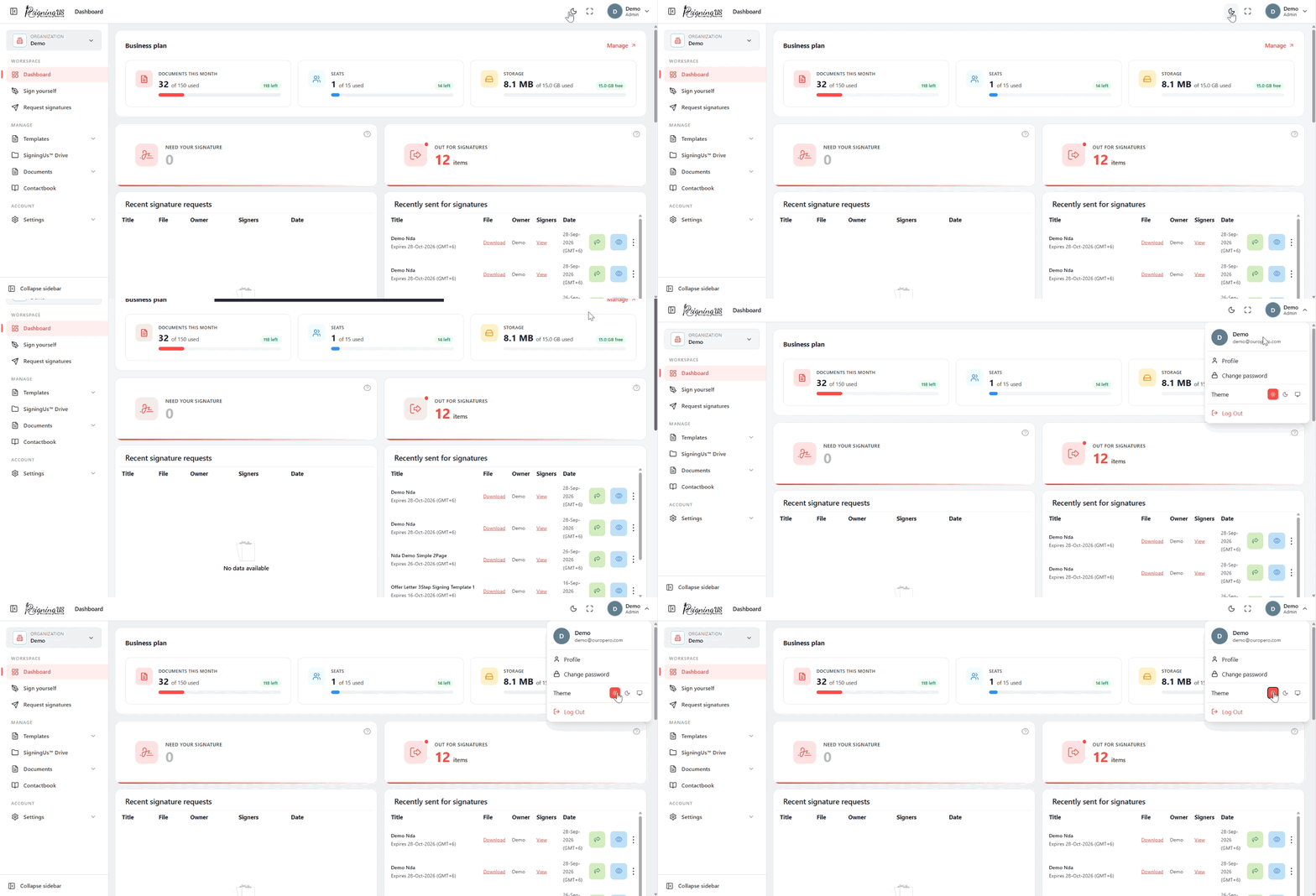
The Header#
- Theme toggle: Switch between light and dark mode.
- Full screen button: Hide the browser interface while you place fields or review a document.
- Avatar menu: Includes "Profile", "Change password", theme options for Light, Dark, or System, and "Log Out".
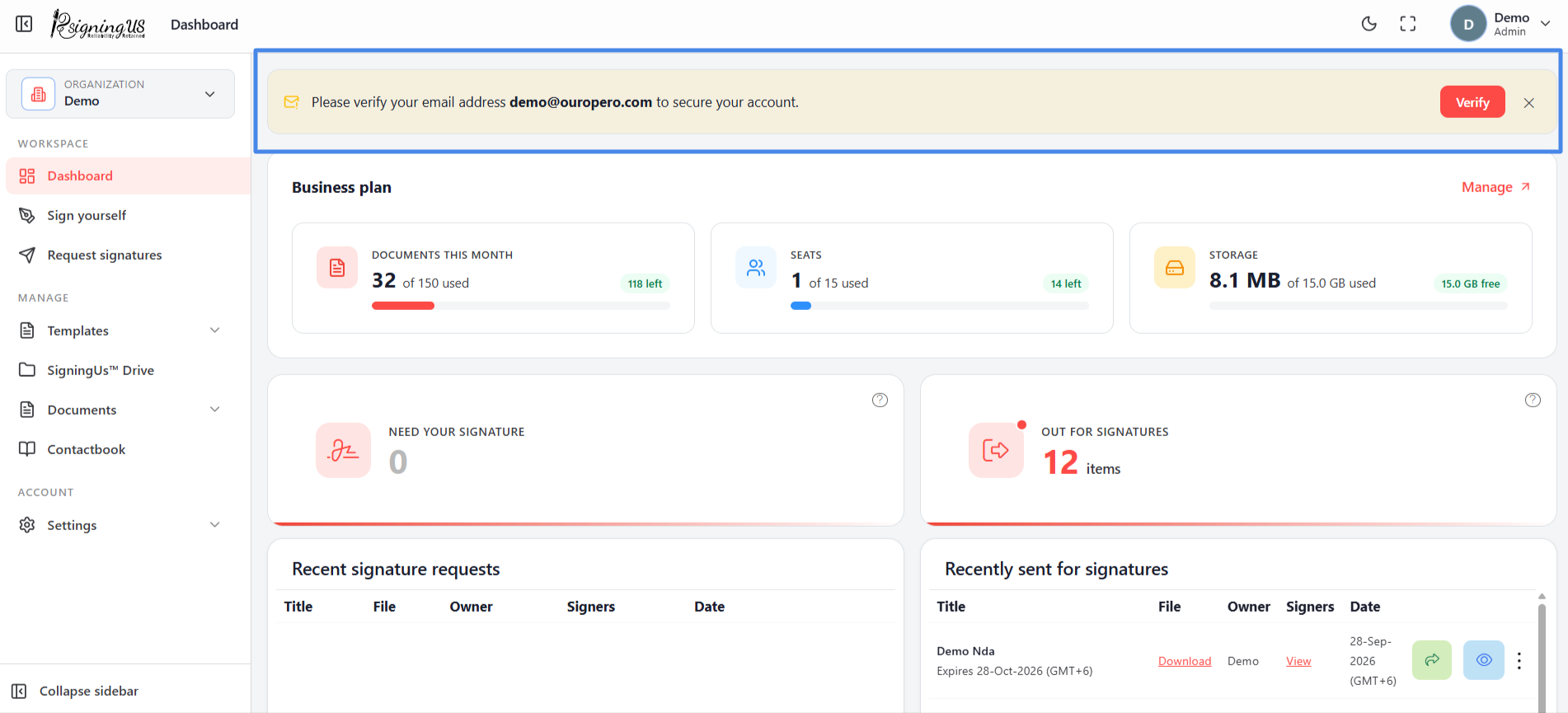
Banners#
| Banner | Why you see it | What to do |
|---|---|---|
| Verify your email | Your email address has not been confirmed yet. | Select "Verify" and enter the six digit code. |
| Your subscription is inactive / Your last payment failed | The organization's plan has ended, or a payment was unsuccessful. New sends, invites, and uploads are paused, but documents already out for signature can still be signed. | An admin selects "Reactivate" or "Fix payment method". |
| Over your plan's seat or storage limit | The organization is using more seats or storage than its plan allows. | An admin selects "Review usage" to free up space or remove seats, or "Upgrade plan". |
Guided Tours#
Many pages open with a short guided tour that highlights the main controls. Select "Don't show this again" in a tour to prevent it from appearing again on that page. The "Enable tour" setting in Preferences and in a document's advanced options is different. It controls the guided tour that your signers see.
Still stuck? Email support@signingus.com and tell us which page you were on and what you expected to happen.