
Add roles to a template
What template roles are, how to add them, and when to attach a contact to a role in advance.
3 min readUpdated
Roles represent the people who will sign a document created from the template. Think about the parties involved and their responsibilities, such as HR for an internal form, Customer for an agreement, or Vendor for a supplier contract. Each role has its own colour, and every field you place is assigned to a role.
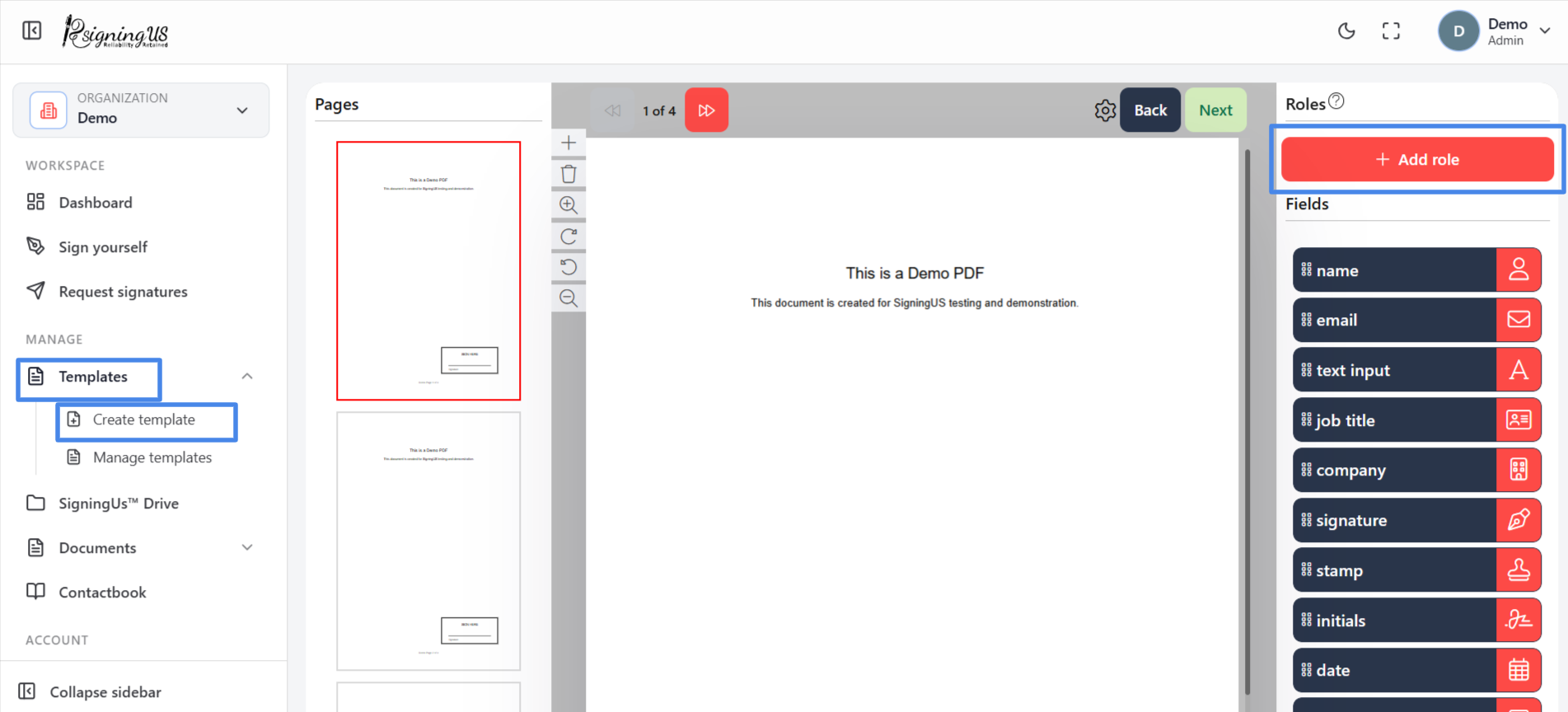
Add a Role#
- In the template editor, select "Add role".
- Enter a name for the role, such as Customer, HR, Director, Manager, or Student.
- Select "Add". The role appears in the roles list with its assigned colour.
- Repeat these steps for every party who needs to sign.
Attach a Contact to a Role (Optional)#
If a role is always assigned to the same person, such as the CEO who countersigns every offer letter, you can attach that person to the role in the template. Select the role's attach icon and choose a contact from your contact list, or add a new one. Documents created from the template will then have that person assigned automatically, and you can still change the contact before sending.
Reorder or Remove Roles#
When "Send in order" is enabled, the order of the roles determines the signing order. Drag the roles to reorder them, or select the delete icon beside a role to remove it along with its fields.
Still stuck? Email support@signingus.com and tell us which page you were on and what you expected to happen.