
Start a new template
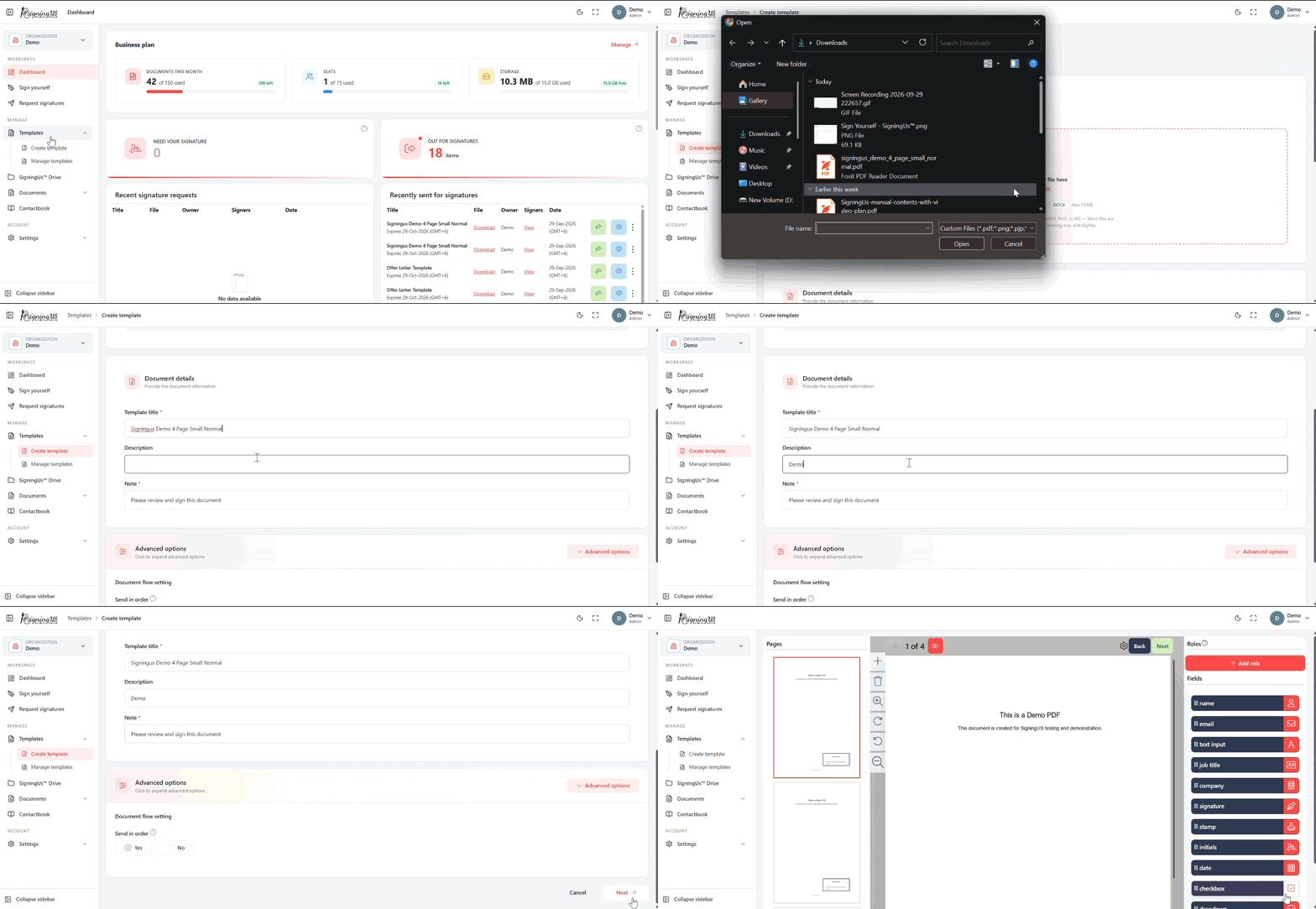
The "New template" form: title, note, description, folder, and the options that every document created from the template inherits.
3 min readUpdated
A template is a document you prepare once and reuse. Instead of specifying the people who will sign, you define the roles they will have, such as Customer or HR. Every document created from the template starts with the same file, fields, and settings.
Fill in the Form#
- In the sidebar, open Templates → "Create template". The page is titled "New template".
- Upload the file that the template is based on.
- Enter a title for the template.
- Optionally add a "Description" and a "Note". The note is included with the signing request that recipients receive.
- Choose a folder in SigningUS™ Drive, or keep the default folder.
- Choose whether documents created from this template are sent in signing order.
- Select "Next" to continue to roles and fields.
Advanced Options#
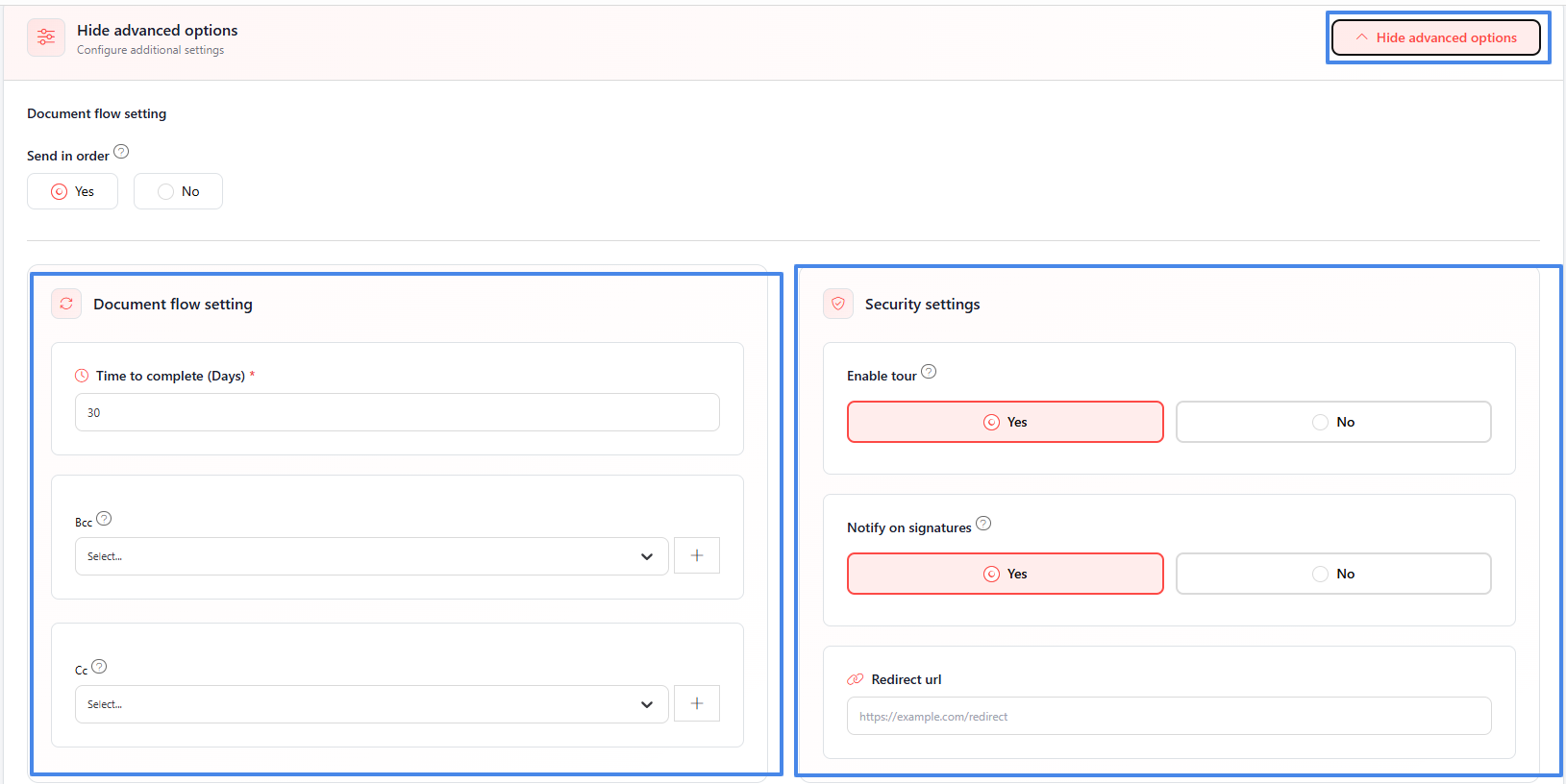
| Option | What it does |
|---|---|
| Time to complete (Days) | Sets how many days signers have to complete a document created from the template before it expires. |
| Bcc / Cc | Specifies contacts who receive an email when each document is completed. |
| Enable tour | Determines whether signers see the guided tour when they open the document. |
| Notify on signatures | Determines whether you receive an email each time a signer signs. |
| Redirect url | An optional web address where signers are redirected after they finish signing. |
Still stuck? Email support@signingus.com and tell us which page you were on and what you expected to happen.