
The sidebar
Every item in the left hand menu and which ones depend on your role.
3 min readUpdated
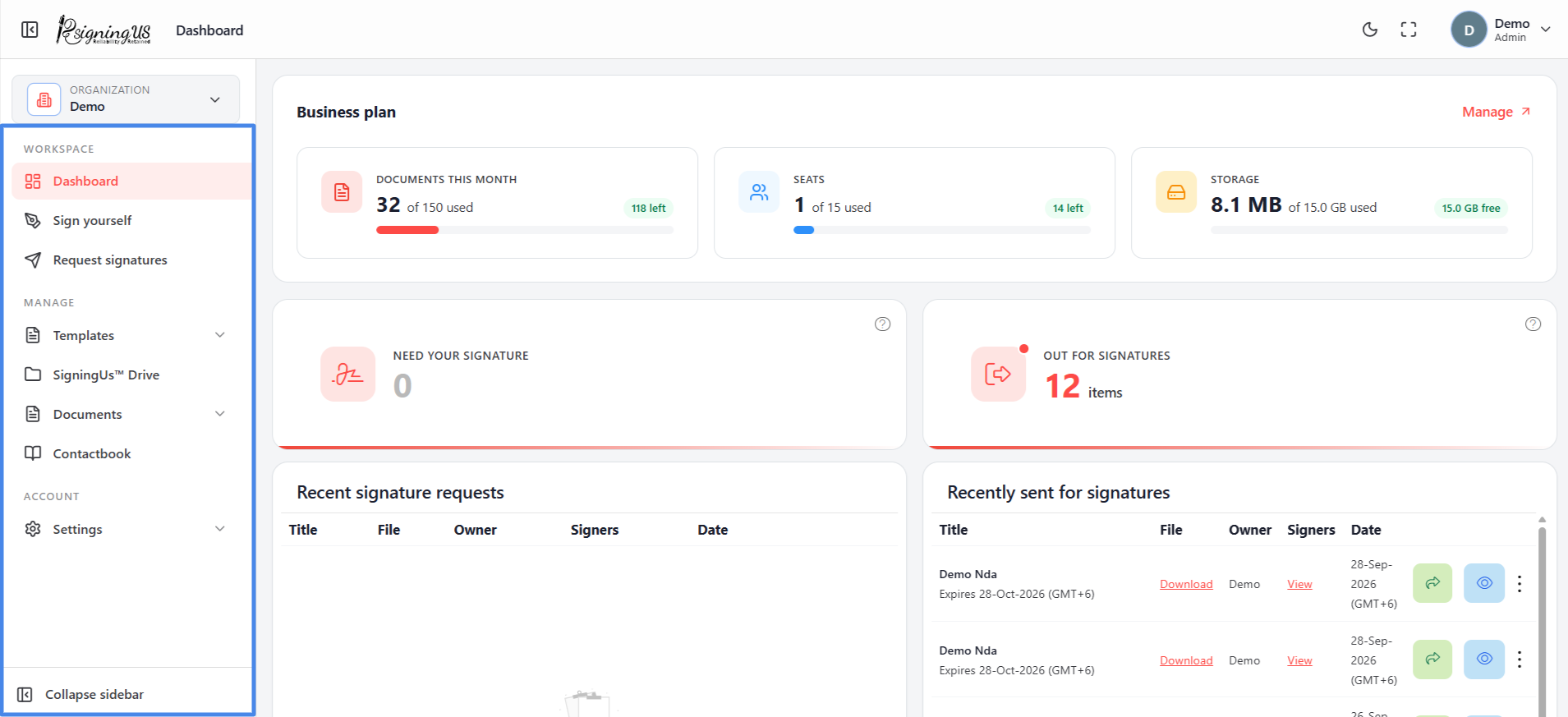
The sidebar is divided into three sections: Workspace, Manage, and Account. On a large screen, you can collapse it into a narrow icon rail. On smaller screens, it opens as a drawer from the menu button.
| Section | Item | What it is for |
|---|---|---|
| Workspace | Dashboard | View your usage, pending work, and recent activity at a glance. |
| Workspace | Sign yourself | Sign a document that only you need to sign. |
| Workspace | Request signatures | Send a document to other people for signing. |
| Manage | Templates | "Create template" and "Manage templates" for documents you send repeatedly. |
| Manage | SigningUS™ Drive | View all documents you have created, organized into folders. |
| Manage | Documents | View documents by status: "Need your sign", "In progress", "Completed", "Drafts", "Declined", and "Expired". |
| Manage | Contactbook | Manage the people you send documents to. |
| Account | Settings | "My signature" is available to everyone. Admins also see "Preferences", "Billing", and "Users". |
What Depends on Your Role#
Admins and OrgAdmins can access four Settings pages: My signature, Preferences, Billing, and Users. Editors and Users can access only My signature. Pages you do not have access to are not shown in the menu.
Switching Organizations#
At the top of the sidebar, the organization switcher shows the organization you are currently working in and your role in that organization. Open it to switch to another organization you belong to, or select "Create organization" to start a new one.
Still stuck? Email support@signingus.com and tell us which page you were on and what you expected to happen.