
Fill in the request form
Start a signature request with a file, a title, the signers, and a note.
3 min readUpdated
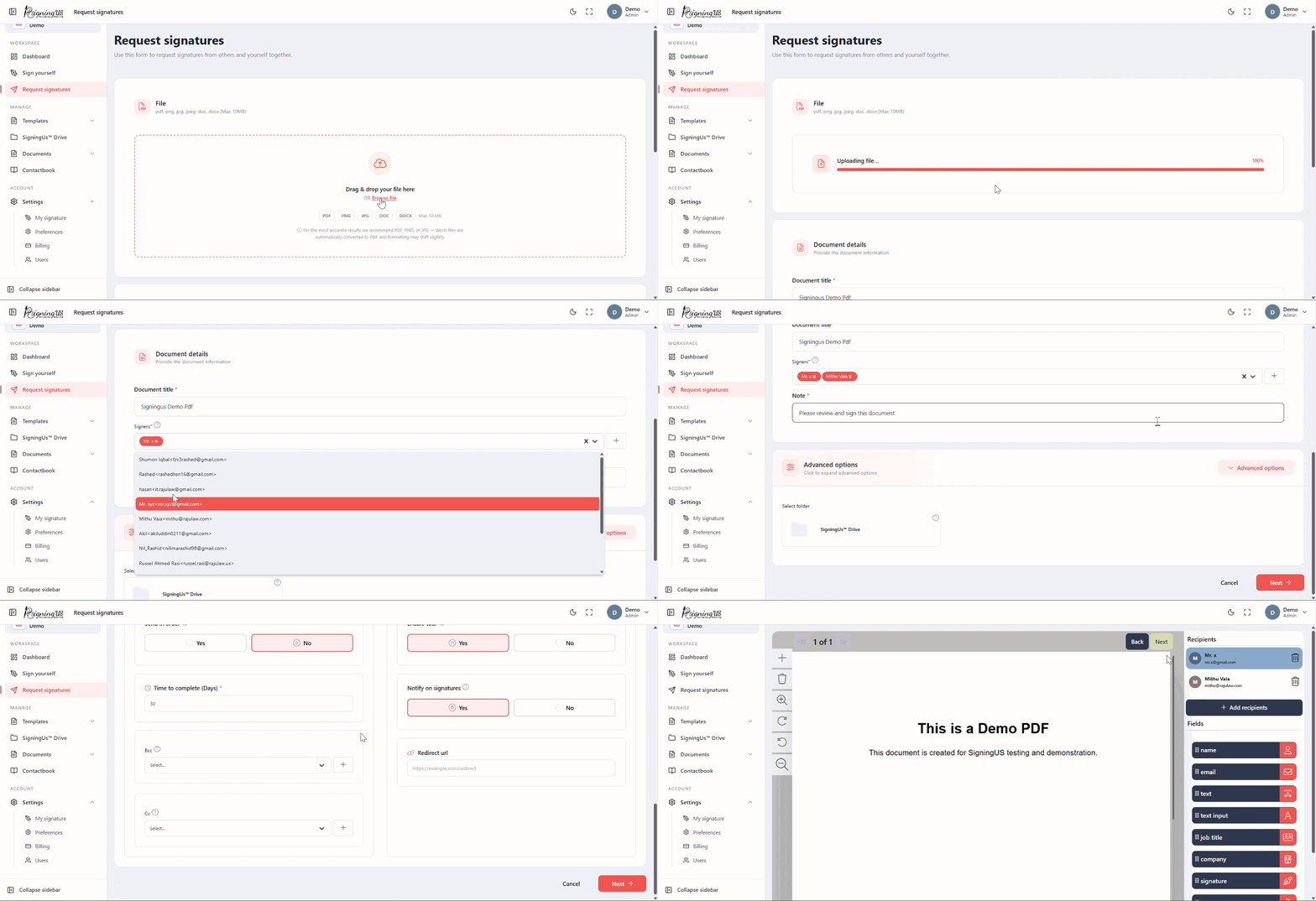
Use "Request signatures" when one or more people need to sign a document, with or without you. You can find it in the sidebar under Workspace and on the dashboard.
Fill in the Form#
- Upload the file.
- Enter a "Document title". This field is required, and the title is shown to your signers in their email.
- Add "Signers". Start typing a name to select a saved contact, or select "+" to add someone new. Add the signers in the order you want them to sign.
- Check the "Note". It starts with "Please review and sign this document" and appears in the email sent to your signers. This field is required.
- Optionally select a folder. If you do not select one, the document is saved in the main SigningUS™ Drive folder.
- Open "Advanced options" if you need to change the signing order, completion time, copies, or what happens after signing.
- Select "Next" to continue to the field placement step.
"Cancel" clears the form without saving anything.
Still stuck? Email support@signingus.com and tell us which page you were on and what you expected to happen.