
Upload a Document
Which files you can upload, the 10 MB limit, password protected PDFs, and why an upload can be refused.
3 min readUpdated
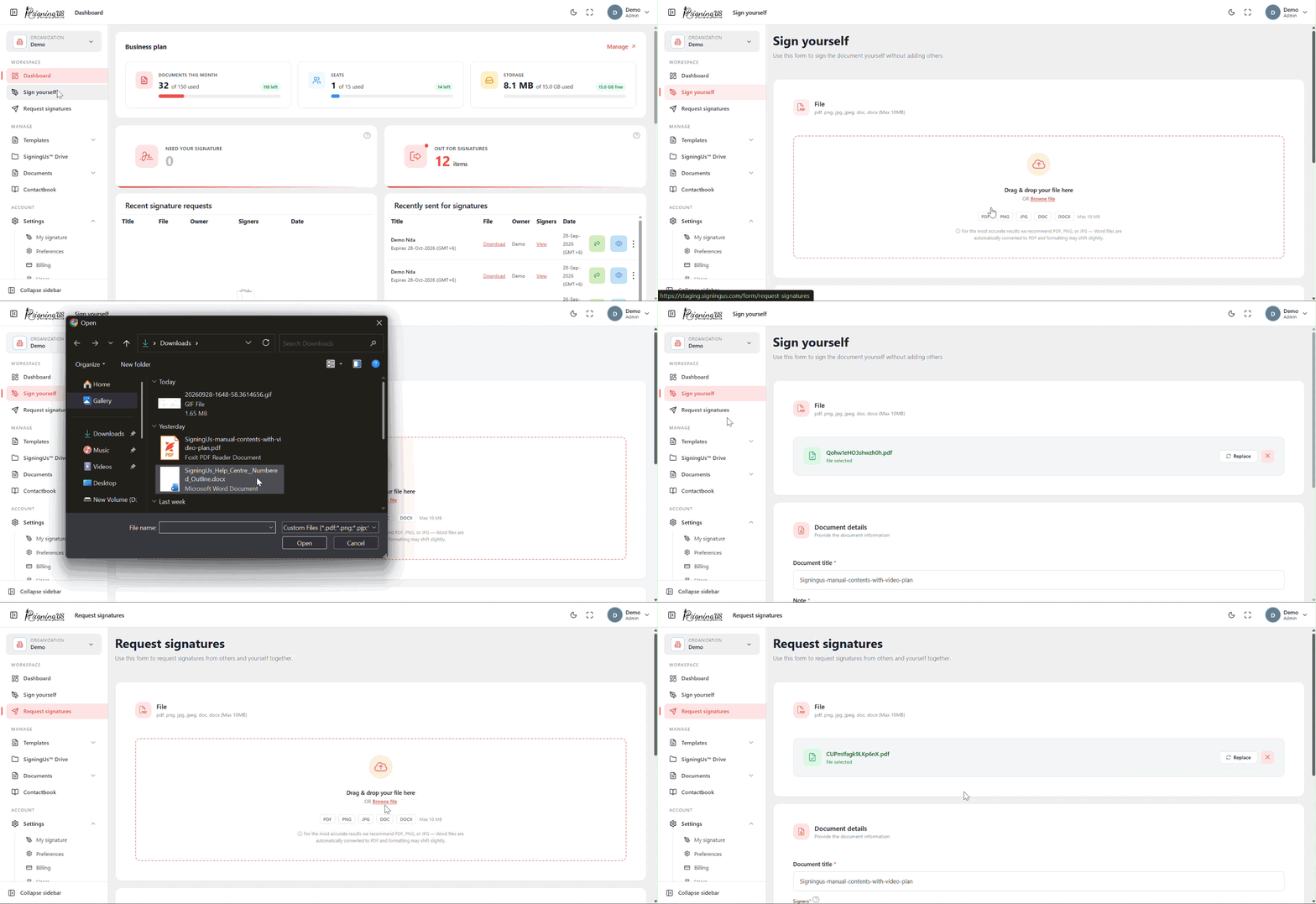
Every document starts with a file. You can upload a file at the top of the "Request signatures", "Sign yourself", or "New template" forms by dragging it into the upload area or selecting it from your computer.
Accepted Files#
| File | What happens |
|---|---|
| Used as is. | |
| Images: PNG, JPEG, WEBP, GIF, BMP, AVIF | Converted into a one page PDF. |
| Word: .doc and .docx | Converted to PDF by SigningUS. |
The hint below the upload area lists only PDF, PNG, JPG, JPEG, DOC, and DOCX, but all of the image types listed above are supported.
Size Limit#
A file can be up to 10 MB. Larger files are refused with the message "The selected file size is too large." Compress the PDF or split it into smaller files, then try again.
Password Protected PDFs#
If a PDF is password protected, SigningUS will ask for the password in an "Enter Pdf password" dialog. Enter the password and select "Submit". If the password is incorrect, you will see "Please provide the correct password".
Title and Note Length#
- Document title: Up to 250 characters.
- Note: Up to 200 characters.
- Description for templates: Up to 500 characters.
When an Upload Is Refused#
Uploads count toward your organization's plan limits. If you have reached a limit, such as the monthly document or storage limit, the upload will be stopped and SigningUS will display the reason. Uploads are also paused while the organization's subscription is inactive.
An admin can review usage and the organization's plan under Settings → Billing.
Still stuck? Email support@signingus.com and tell us which page you were on and what you expected to happen.