
Open a Signing Link
Open a document someone sent you without an account or an app to install.
2 min readUpdated
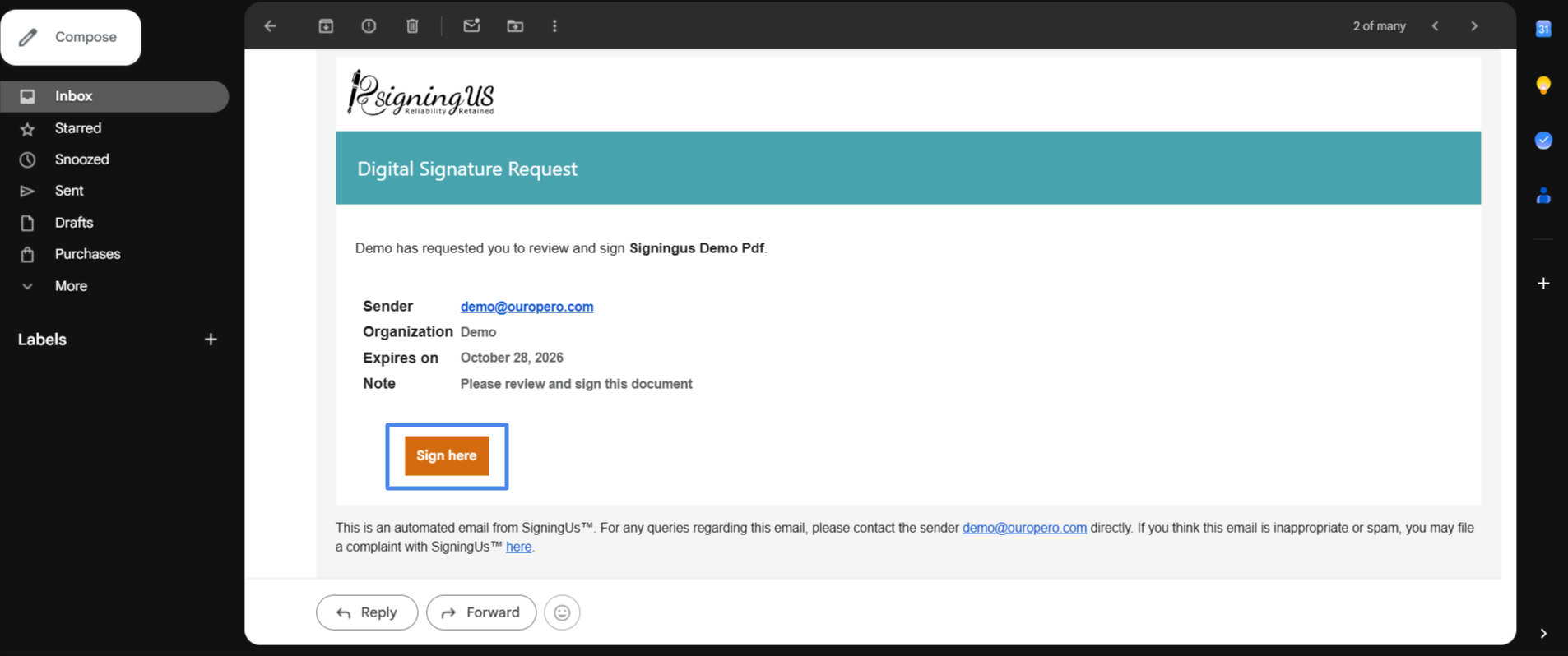
When someone sends you a document through SigningUS, you receive a personal signing link by email or directly from the sender through a chat or message. You do not need a SigningUS account, and there is nothing to install. The link works in a browser on a computer, tablet, or phone.
Opening the Link#
Most of the time, the link opens the document directly. In some cases, SigningUS first needs to verify your identity:
| You see | What to do |
|---|---|
| Provide your details | Enter your name. Your email address is already filled in and cannot be changed. A phone number is optional. Select "Next". |
| Get verification code | Select it, and SigningUS will send a verification code to your email. Enter the code in the "OTP verification" dialog and select "Verify". If the code does not arrive, select "Resend". |
Choose Your Language#
Use the language selector on the page to view SigningUS in English, Spanish, French, Italian, German, or Hindi. This changes the app's buttons and messages, but not the document itself.
If you have a SigningUS account, documents sent to your account's email address also appear under Documents → "Need your sign", where you can select "Sign".
Still stuck? Email support@signingus.com and tell us which page you were on and what you expected to happen.