
Fix and resend a declined document
Turn a declined document back into a draft with its fields intact, then send it again.
2 min readUpdated
When a signer declines a document, check the "Reason" column on the "Declined" list to see why they declined it. You do not need to start from scratch to send a corrected version.
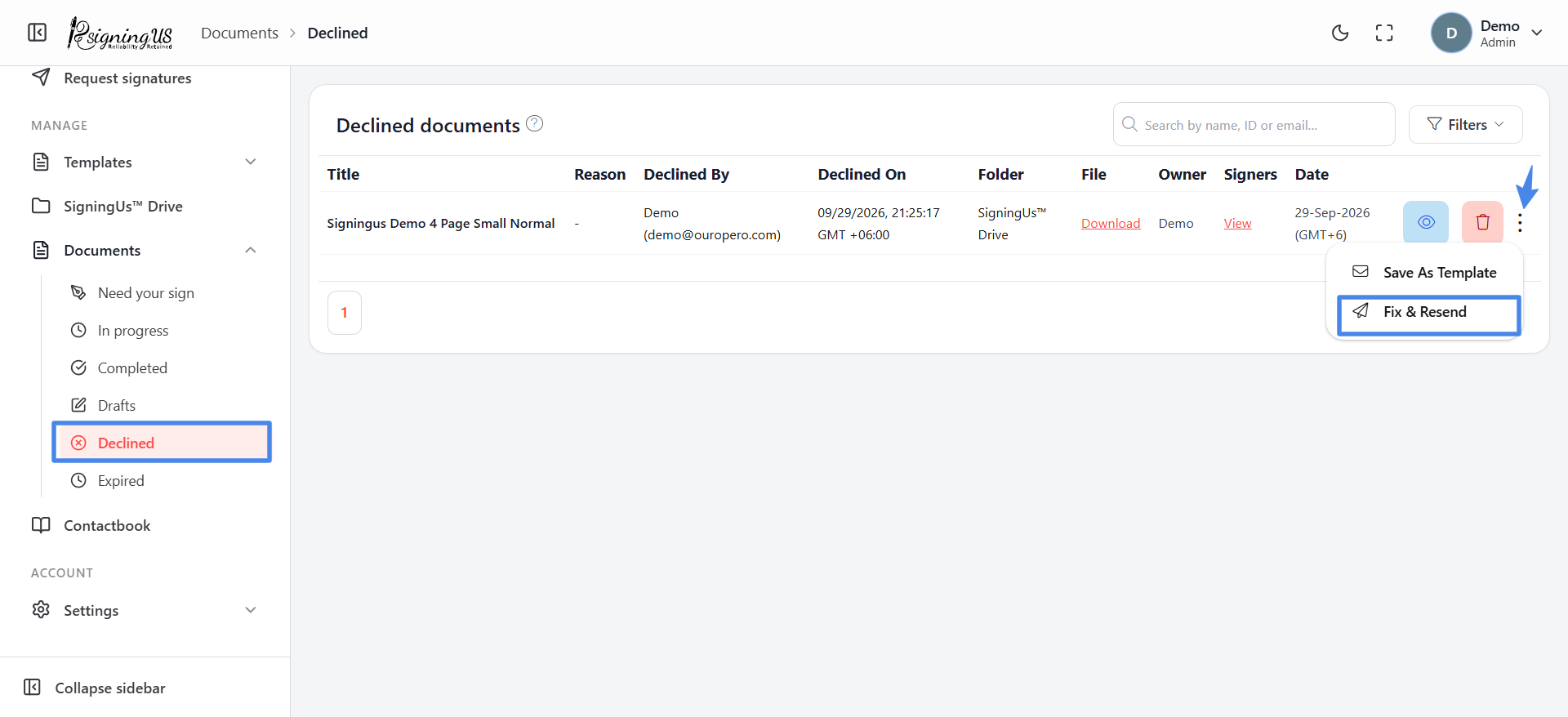
- Open Documents → "Declined".
- Open the ⋮ menu on the document and select "Fix & resend".
- The "Fix & Resend Document" dialog explains that a new draft will be created with all fields intact.
- Select "Start Editing". The new draft opens.
- Make the necessary changes to the fields or recipients, then send the document as usual.
Still stuck? Email support@signingus.com and tell us which page you were on and what you expected to happen.